I added a few significant editor experience improvements!
Here is a quick demo:
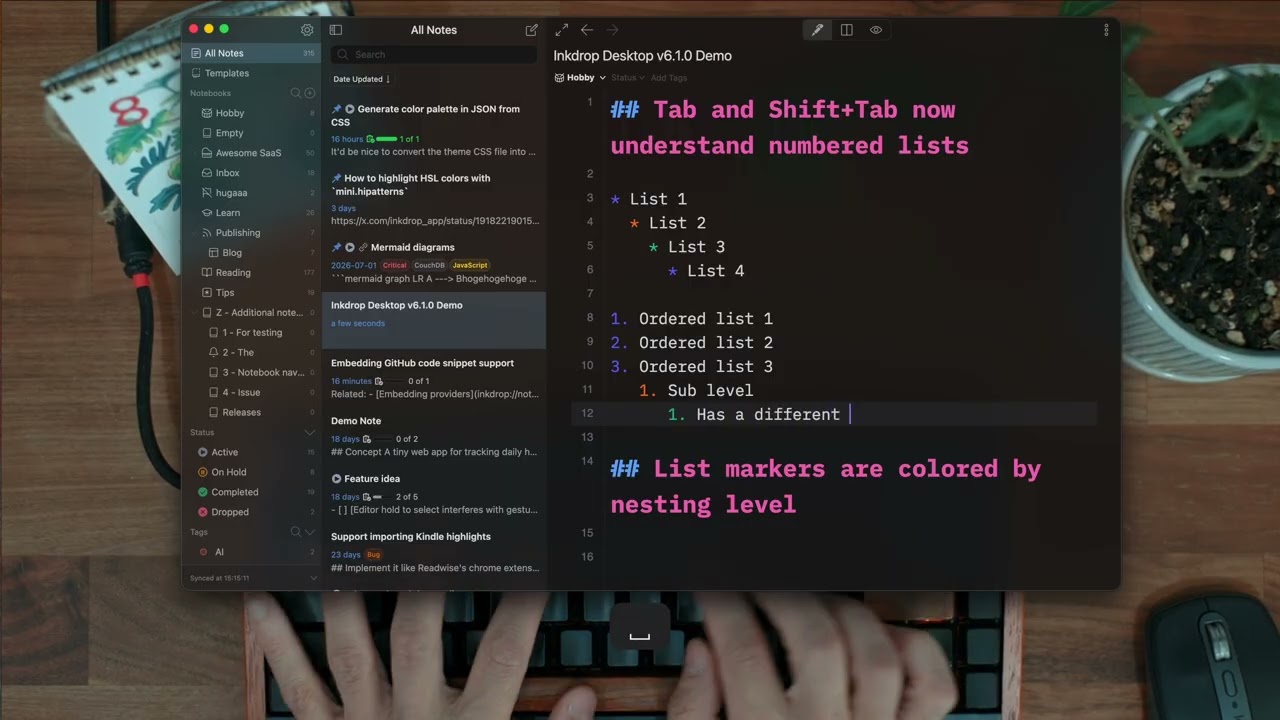
Tab and Shift+Tab now understand numbered lists
Before, Tab always indented a list item by two spaces.
That is enough to nest an item under a bullet (- ), but not under a numbered item (1. ) — there, a nested item has to start three spaces in, right under the text after the number.
So a bullet under a numbered item didn’t render as nested until you added the third space by hand.
(forum report, thanks @KiNG_N)
Now Tab indents a list item by exactly the right amount for the item above it: two spaces under - , three under 1. , four under 10. .
For example, press Tab once on the second line here:
 1. This is a line of text.
-  - This is a bullet point indented with 2 spaces.
+   - This is a bullet point indented with 3 spaces.
Shift+Tab does the reverse.
Numbered lists are renumbered automatically when an item moves in or out, and one undo reverts the whole change.
List markers are colored by nesting level
Bullets and numbers in the editor now get a distinct color at each nesting level — level one keeps its usual color, levels two and three get their own, and deeper levels cycle through the same three — so the structure of a deeply nested list is visible at a glance.
Only the marker is colored; the text of the item is left alone, which keeps it from getting distracting the way per-level text colors did in the old editor.
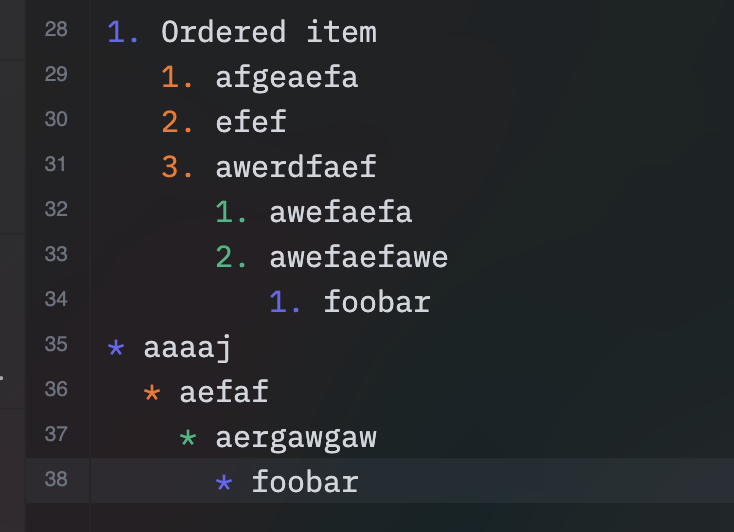
Themes can set the colors through the new --md-list-mark-2-color and --md-list-mark-3-color variables, next to the existing --md-list-mark-color.
The preview has matching --mde-preview-list-marker-color, --mde-preview-list-marker-2-color and --mde-preview-list-marker-3-color variables; they default to the text color, so preview markers look the same as before unless a theme opts in.
New editor commands
The editor gained 30 new commands for editing and sorting lines, changing case, extending selections and toggling comments.
They ship with default keybindings where there was a free one:
| Command | What it does | Keybinding |
|---|---|---|
editor:copy-line-up |
Duplicate the current line upward | Shift+Alt+↑ |
editor:copy-line-down |
Duplicate the current line downward | Shift+Alt+↓ |
editor:insert-blank-line |
Open a new indented line below, from anywhere in the current line | Cmd+Enter (macOS only) |
editor:select-line |
Select the whole line | Cmd+L / Ctrl+L |
editor:go-matching-bracket |
Jump to the matching bracket | Shift+Cmd+\ / Shift+Ctrl+\ |
editor:select-matching-bracket |
Extend the selection to the matching bracket | — |
editor:select-parent-syntax |
Expand the selection to the enclosing syntax node | — |
editor:go-subword-left / editor:go-subword-right |
Move the cursor by subword, stopping inside camelCase and snake_case words |
Ctrl+Alt+← / Ctrl+Alt+→ (all platforms) |
editor:select-subword-left / editor:select-subword-right |
Extend the selection by subword | Ctrl+Alt+Shift+← / Ctrl+Alt+Shift+→ (all platforms) |
editor:select-next-occurrence |
Add a cursor at the next occurrence of the selected text | — |
editor:select-selection-matches |
Select every occurrence of the selected text at once | Alt+F3 |
editor:toggle-comment |
Toggle a comment — <!-- --> in Markdown, or the code block language’s own comment syntax |
— |
editor:toggle-line-comment |
Toggle a line comment, for use inside code blocks | — |
editor:sort-lines-insensitive |
Sort the selected lines alphabetically, ignoring case | F5 / F9 |
editor:reverse-sort-lines-insensitive |
Sort the selected lines in reverse, ignoring case | Shift+F5 / Shift+F9 |
editor:sort-lines |
Sort the selected lines alphabetically, case-sensitively | Ctrl+F5 / Ctrl+F9 |
editor:reverse-sort-lines |
Sort the selected lines in reverse, case-sensitively | Shift+Ctrl+F5 / Shift+Ctrl+F9 |
editor:join-lines |
Join the selected lines into one, separated by a single space, dropping the absorbed lines’ indentation. With nothing selected, joins the line below | Ctrl+J / Ctrl+Shift+J |
editor:insert-line-before |
Open an indented blank line above the current one — the counterpart of editor:insert-blank-line |
Shift+Cmd+Enter / Shift+Ctrl+Enter |
editor:upcase-at-cursor / editor:downcase-at-cursor |
Upper- or lowercase the selection, or the word at the cursor when nothing is selected | — |
editor:find-under |
Select the next occurrence of the selection, or of the word at the cursor, wrapping around the note | Cmd+F3 / Ctrl+F3 |
editor:find-under-previous |
The same, searching backwards | Shift+Cmd+F3 / Shift+Ctrl+F3 |
editor:skip-and-select-next-occurrence |
Move the selection on to the next occurrence instead of adding a cursor to it | — |
editor:split-selection-by-line |
Replace the selection with one cursor per line it covers | — |
editor:scroll-line-up / editor:scroll-line-down |
Scroll the view by one line, leaving the cursor where it is | Ctrl+PageUp / Ctrl+PageDown — Ctrl+↑ / Ctrl+↓ on Windows & Linux |
editor:show-in-center |
Scroll the line with the cursor on it to the vertical center of the view | Ctrl+L (macOS only) |
Where two keystrokes are listed, the first is macOS and the second Windows & Linux.
Commands without a default keybinding can be bound yourself in keymap.json — see Customize keybindings. They are also available from the command palette.
Two Windows & Linux keystrokes changed meaning inside the editor. Ctrl+↑ / Ctrl+↓ used to be a second way to move the cursor one line — exactly what plain ↑ / ↓ already did, and still do — and now scroll the view instead. Ctrl+Shift+J joins lines while the editor has focus, rather than selecting the next item in the sidebar.
Most of these defaults are the same keystrokes Zed uses for the equivalent action, so muscle memory carries over.
Sorting only touches ranges that cover at least two lines, so an empty selection never rewrites the note. Plain F5 / F9 ignores case and Ctrl makes it case-sensitive, matching Sublime Text.
Sublime Text-like keybindings
The Sublime keymap plugin is back for v6.
It stopped working with the new editor (forum report, thanks @Ryuki_Yokoo) because it depended on the old editor’s Sublime keymap module.
With the commands above, everything it needs is now built into the app, so the sublime plugin has been rewritten as a keymap-only one for v6.
Install it from Preferences → Plugins → Install, or with ipm install sublime.
Please note that Sublime’s keys overlap a few of Inkdrop’s defaults.
The full binding table and the list of overlaps are in the README, and any single binding can be handed back to Inkdrop with "unset!" in your keymap.json.
Snap package for Linux
I decided to keep publishing Snap packages.
I was planning to move to FlatHub, but it turned out they didn’t approve my submission, unfortunately.
They required Inkdrop to use the portal secret API instead of org.freedesktop.Secret, but it looked like too hard for me to fully migrate to it just for registering it to FlatHub.
To install the Snap package:
sudo snap install inkdrop
# Allow the app to access your keyring
sudo snap connect inkdrop:password-manager-service
Thanks @Daniel_Hill
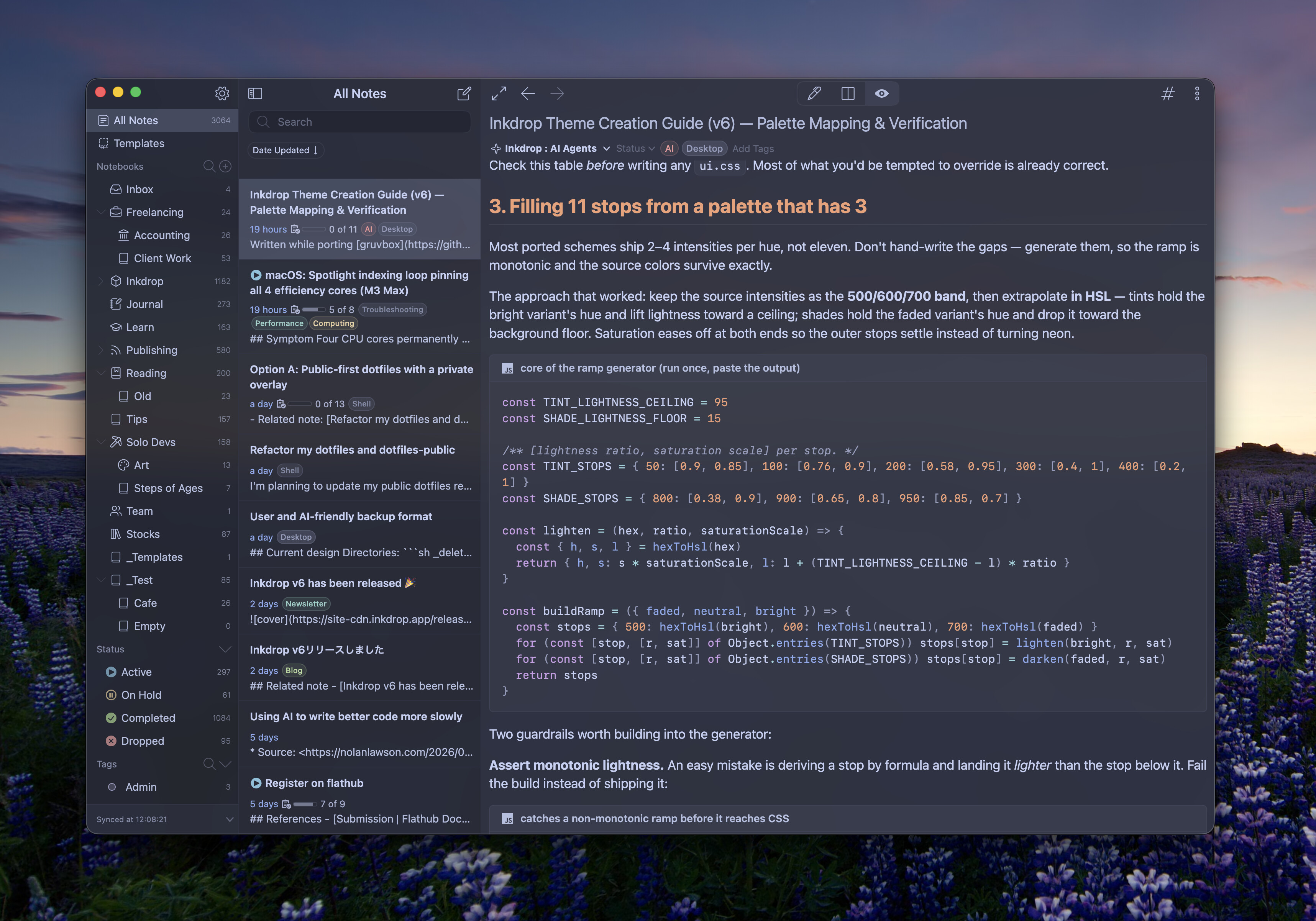
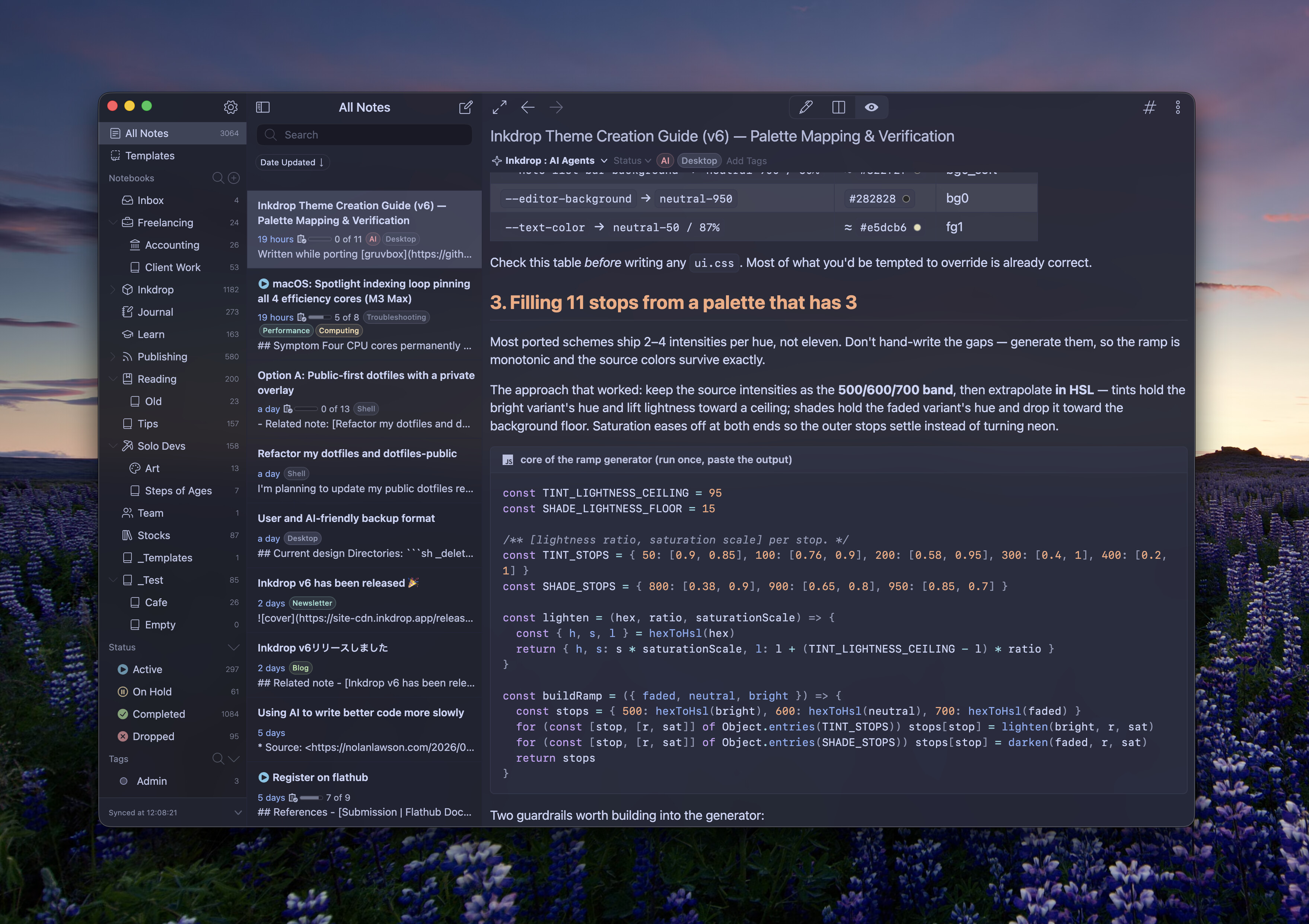
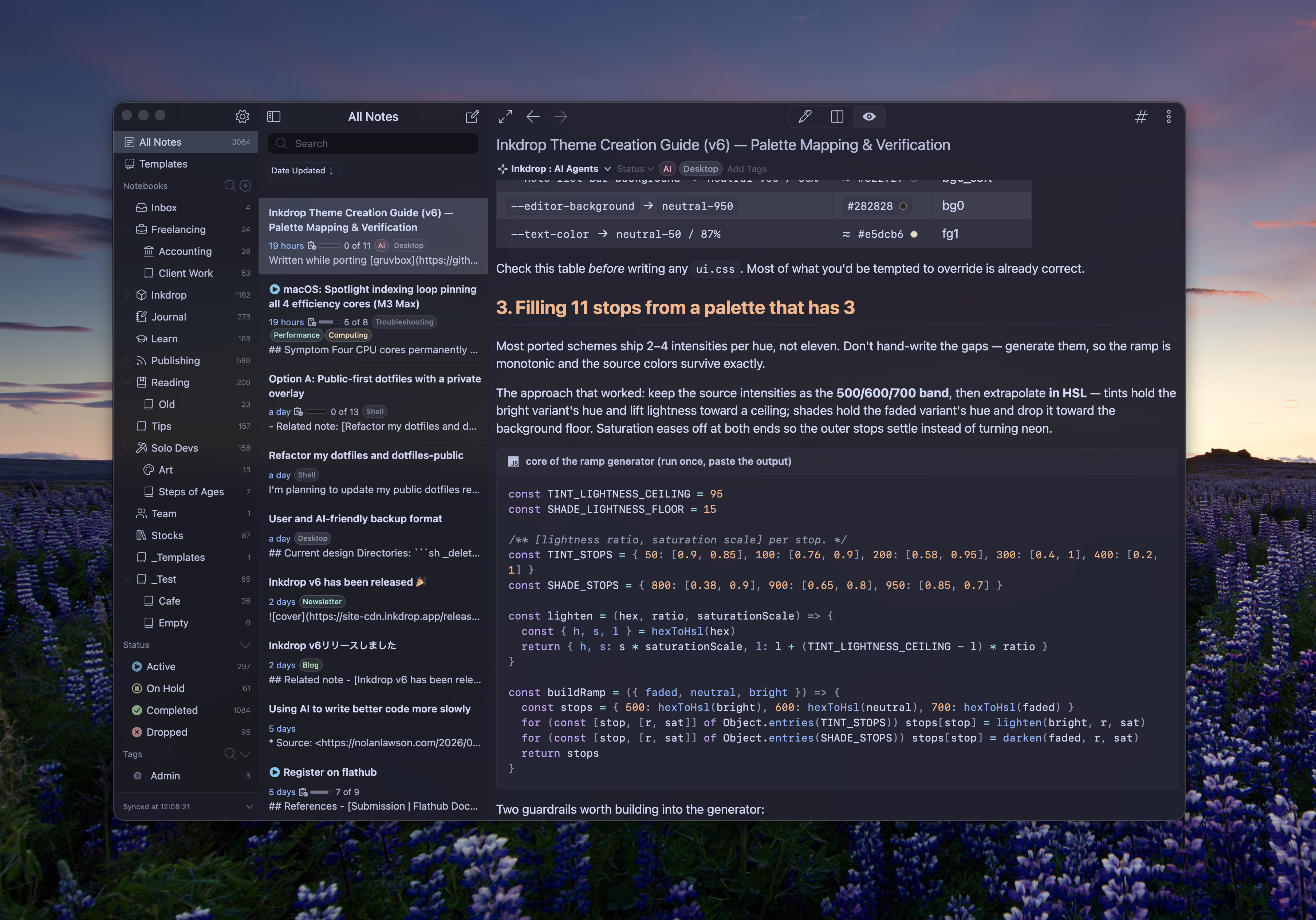
New themes recently published
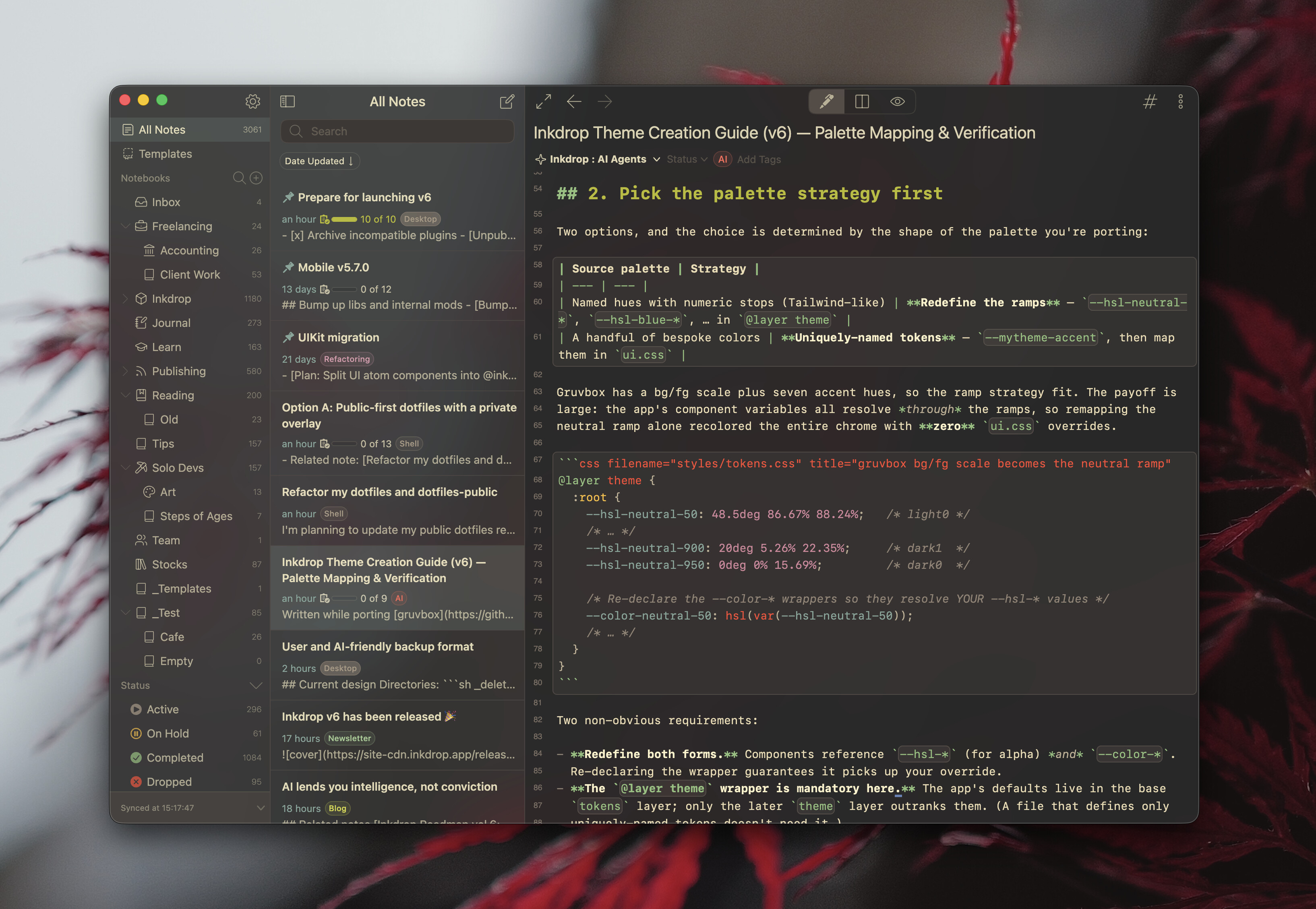
Gruvbox
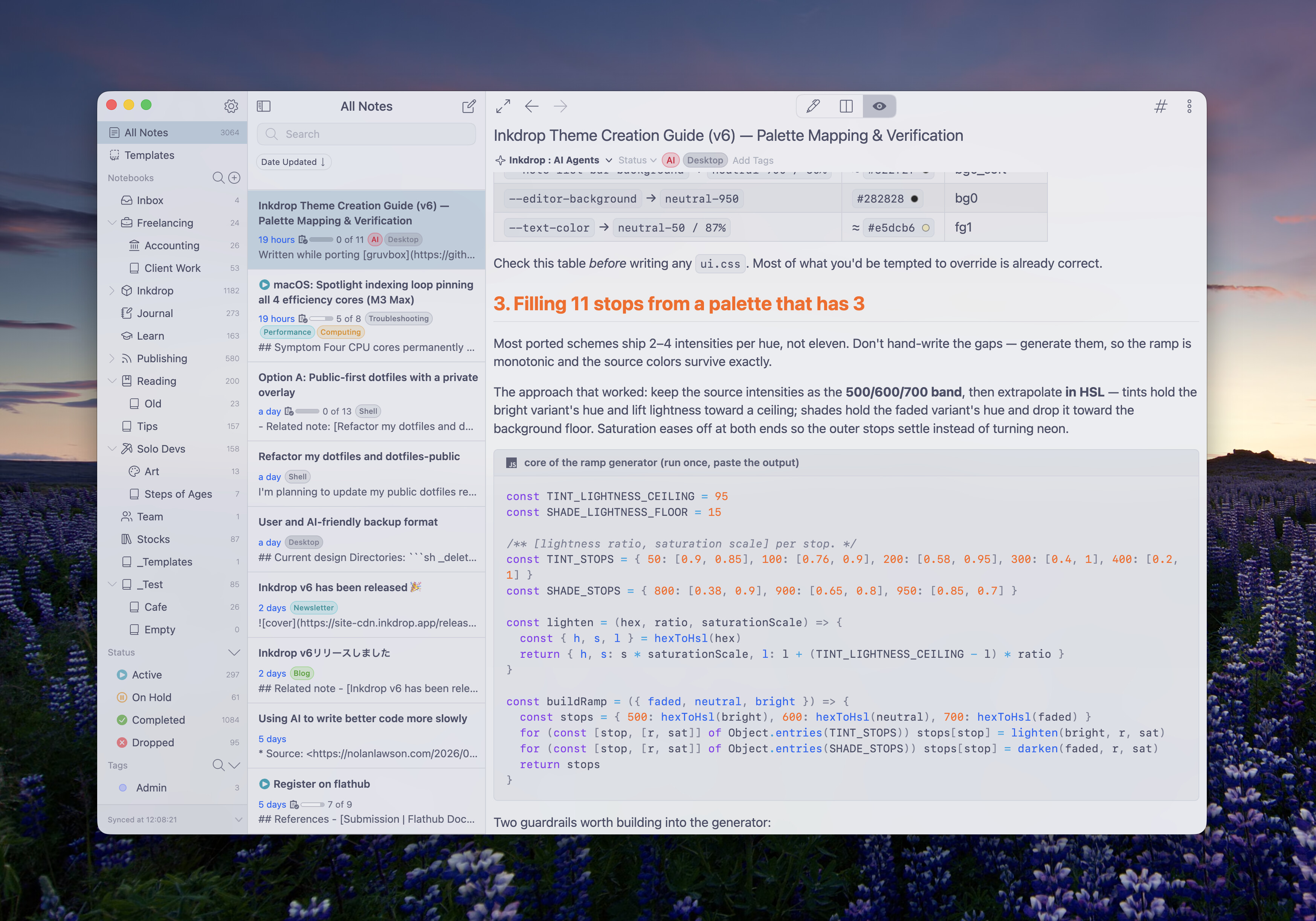
Catppuccin
Other improvements
- UI: Right-clicking the notebook picker in the editor now offers Copy Notebook ID, next to Open Notebook and Go to Workspace.
- Framework: Electron has been updated from 41 to 43, bringing Chromium 150 and the latest security fixes.
Bug Fixes
- Theme: Choosing Default Light or Default Dark in Preferences → Themes did nothing when it matched the current window’s appearance and the automatic light/dark toggle was off — the choice was never stored, so the app kept following the system. It is now stored and survives a restart.
- Theme: Automatic switching between the default light and dark themes didn’t reliably follow the system appearance (forum report, thanks @birtles). The app now listens to the OS appearance directly, and also catches up at launch if it changed while Inkdrop was closed.
- Theme: Updating a theme from the plugin Updates list in Preferences activated it, replacing the theme you were using. Updates now leave your current theme alone.
- Editor: Toggling a bullet list, numbered list, blockquote or task on a line that continues a list item without a marker of its own did nothing. And toggling a list on an indented line put the marker in front of the indentation, producing a mis-indented sibling instead of a nested item.
- Editor: Pressing ↓ at the end of the note title moved focus into the editor, but the cursor landed wherever it last was instead of at the start of the document (forum report, thanks @Ryuki_Yokoo).
- Editor :The copy codeblock button position is wrong in the editor if the Readable Line Length option is enabled.
- Note list: Pinned notes lost their place at the top of the note list after clearing the filter keyword.
- Templates: A custom template with an invalid
statusvalue —Activeinstead ofactive, say — took down the whole UI, and kept doing so on every launch because the half-created note was restored. Such a template is now rejected with an error instead of being applied, and an unknown status falls back to no status rather than crashing. (Thanks @misakit) - Templates: Excludes custom template notes (bookId=template) from the note status counts (Thanks @misakit)
- Tray: The tray icon looked jagged on low-DPI screens: Windows at 100% scaling downscaled the single large icon to 16×16 with a rough filter. It now ships pre-rendered 1×, 1.5× and 2× variants so each display gets a crisp one. (Thanks @Micha_Huhn )
For plugin and theme developers
- The new
editor:*commands above can be dispatched from plugins like any other command, and their names are typed in@inkdropapp/types— along with the foureditor:resize-image-*commands that were missing from it. - The second group’s implementations live in
@inkdropapp/editorrather than the desktop app, exported as plain CodeMirror 6Commands (sortLines,joinLines,insertLineBefore,upcaseAtCursor,downcaseAtCursor,findUnder,findUnderPrevious,skipAndSelectNextOccurrence,splitSelectionByLine,scrollLineUp,scrollLineDown,showInCenter), so a plugin can compose them into its own keymap extension — and the mobile app can share them. - The
selectorfor editor commands is.cm-editor. The API docs previously listed.mde-cm-wrapperfor most of them, which is a CodeMirror 5 leftover that no longer exists in the DOM — a keymap written against it never fires. That has been corrected across the command reference. inkdrop.windowgainedgetOpacity()andsetOpacity(opacity), so a plugin can make the window translucent.- To color list markers per nesting level in a syntax theme, set
--md-list-mark-2-color/--md-list-mark-3-colorfor the editor and--mde-preview-list-marker-color/-2-color/-3-colorfor the preview. If your theme styles.md-list-markwith a rule of its own, note that the level class sits on an outer span: target.md-list-mark-2 .md-list-markand.md-list-mark-3 .md-list-mark.
New doer joined

Thanks Alex for your review!