Hey Inkdroppers,
I’m happy to announce Inkdrop mobile v6 for both iOS and Android!
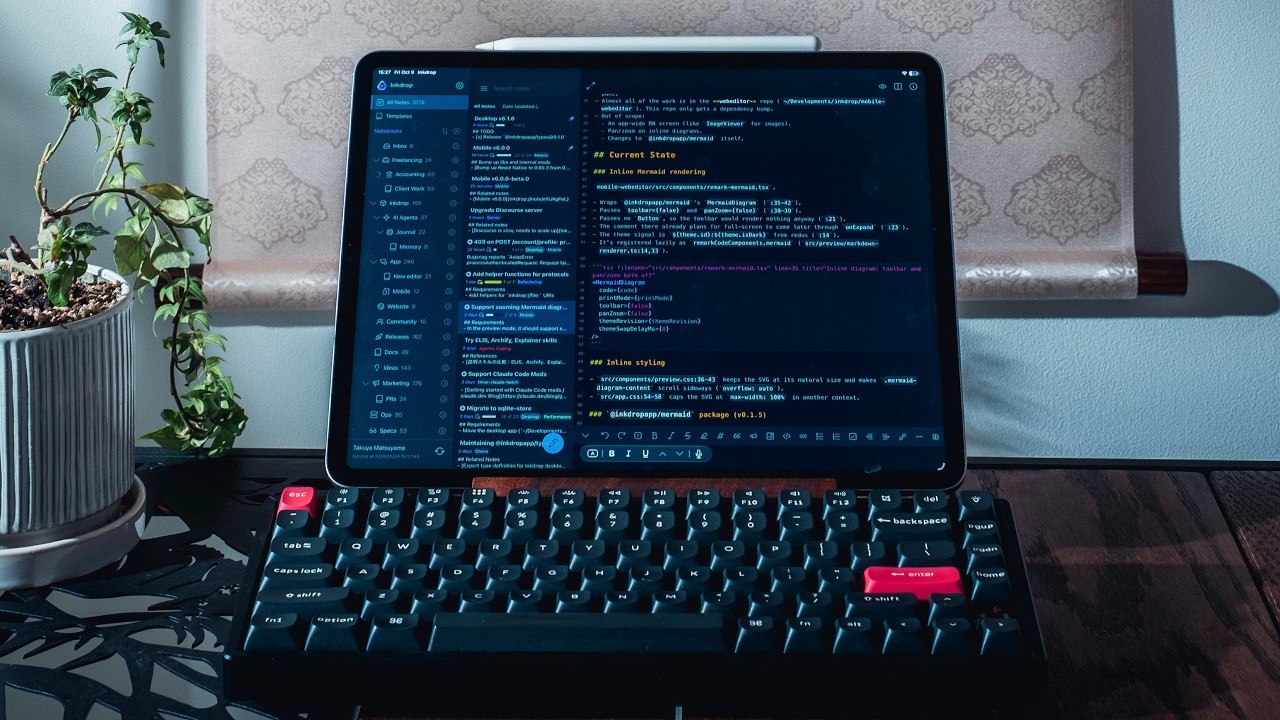
It comes with the new editor as in the desktop app, great performance improvements, custom theme support, and many of the features that landed in desktop v6 are now available on mobile, too 
 Faster launch & smoother sync
- The app now opens straight into the note you were editing, and the note is ready much sooner than before.
- The UI no longer freezes during the initial sync.
- On the first launch after updating, you’ll see “Upgrading database..” once. It only takes a second or two.
A brand-new database index
Your notes are now indexed with a new SQLite-based database engine, which replaces the old indexes for the note list, notebook counts and full-text search.
Here is how it compares with the previous version, with 50,000 notes:
| What | Before | Now | Faster by |
|---|---|---|---|
| Updating the search index after syncing 200 notes | 13.5 s | 0.11 s | 122× |
| Updating the note list index after syncing 200 notes | 1.5 s | 0.06 s | 25× |
| Updating the search index after saving a note | 67 ms | 1.6 ms | 41× |
| Building the search index from scratch | 16 min | 21 s | 45× |
| Building the note list index from scratch | 2 min | 5.6 s | 22× |
| Loading a page of the note list | 0.3 ms | 0.04 ms | 8–12× |
| Counting notes in a notebook | 214 ms | 4 ms | 51× |
| Searching with a short keyword (2 characters) | 421 ms | 19 ms | 22× |
| Searching for a word, newest first | 47 ms | 12 ms | 3.9× |
The note list index also takes 16× less storage (from 527 MB to 33 MB with 50,000 notes).
 A new editor
The editor now runs on the same engine as the desktop app.
- The editor, preview and code blocks follow your theme’s colors.
- Code blocks in the preview get line numbers and a header showing the title and language.
- Mermaid diagrams and math equations are rendered just like on desktop. Diagrams follow light/dark mode, and equations are numbered.
- Tap a Mermaid diagram in the preview to expand it to full screen, where you can zoom and pan.
Learn more: What can I do with Markdown?
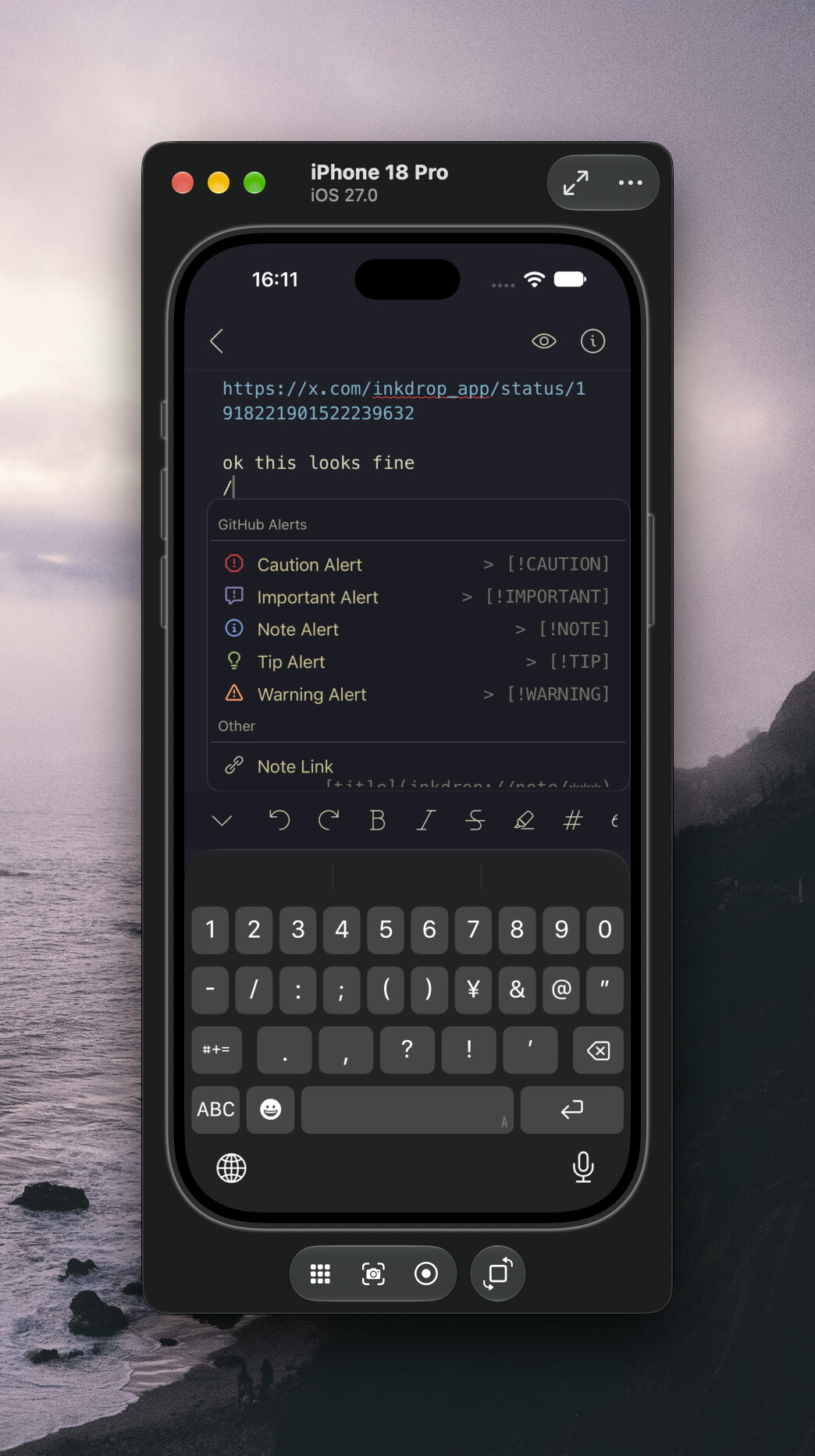
/ slash commands
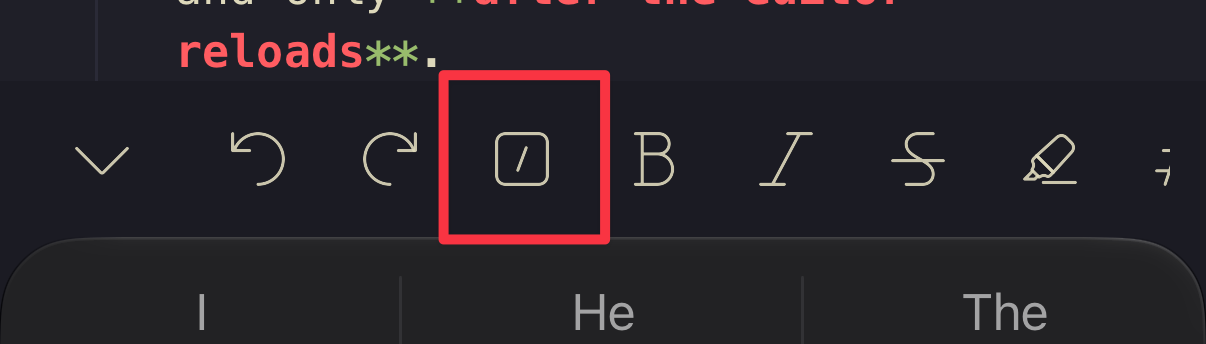
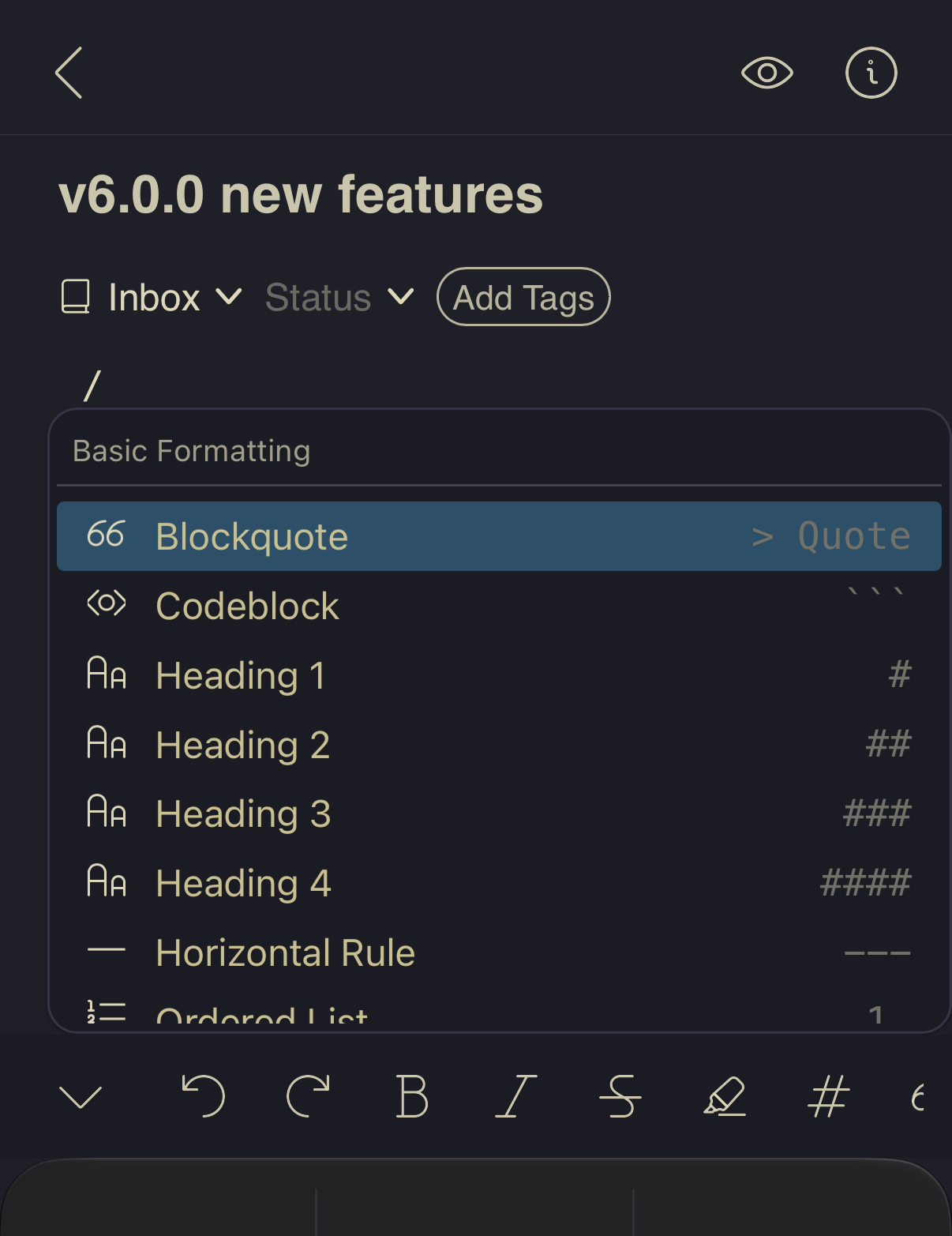
Type / in the editor or press the “[/]” toolbar button to open a command menu.
It lets you quickly insert headings, lists, task lists, code blocks, horizontal rules, blockquotes, GitHub alerts (Note, Tip, Important, Warning, Caution) and note links.
Keep typing to filter the commands.
Note links with autocomplete
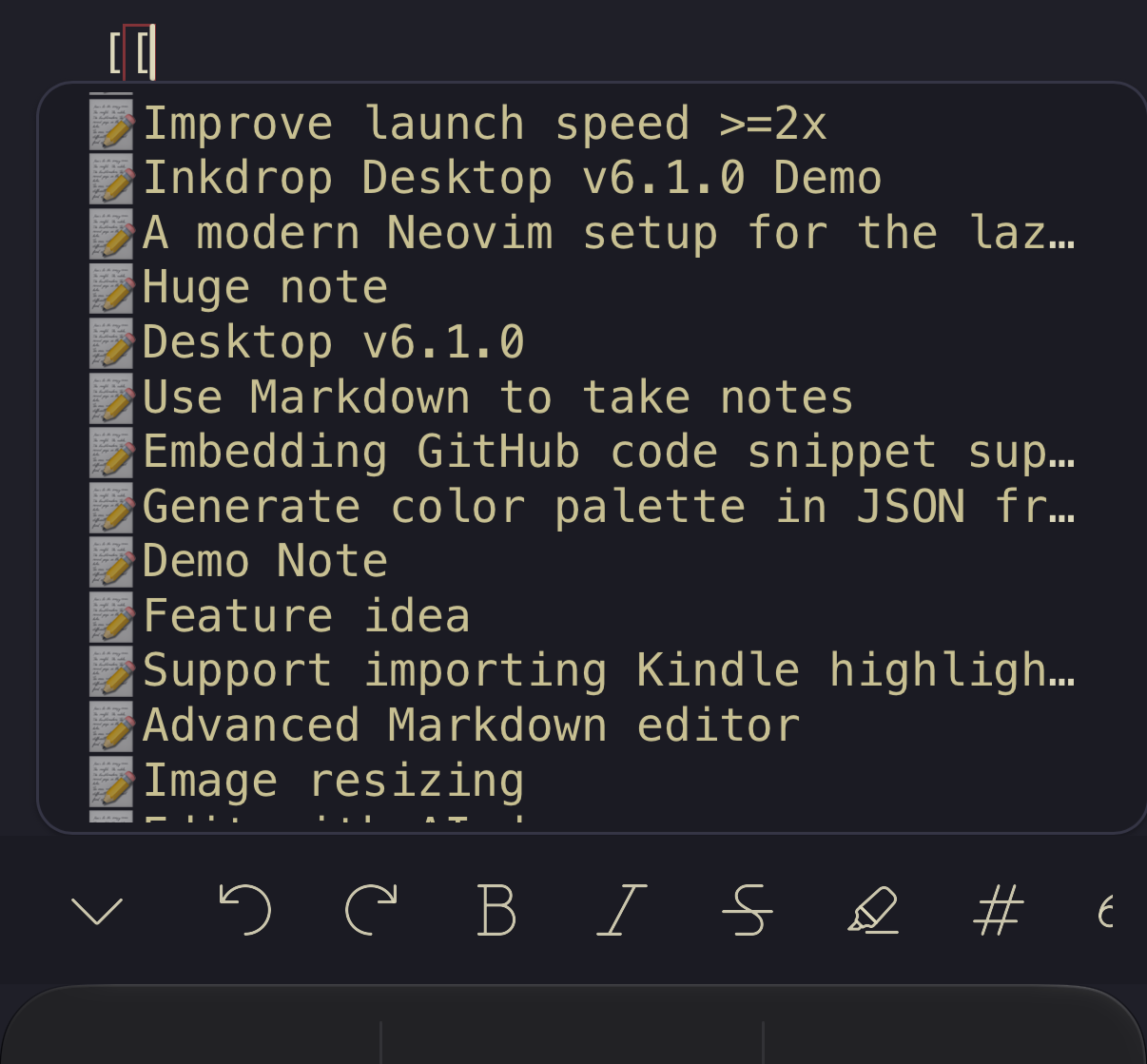
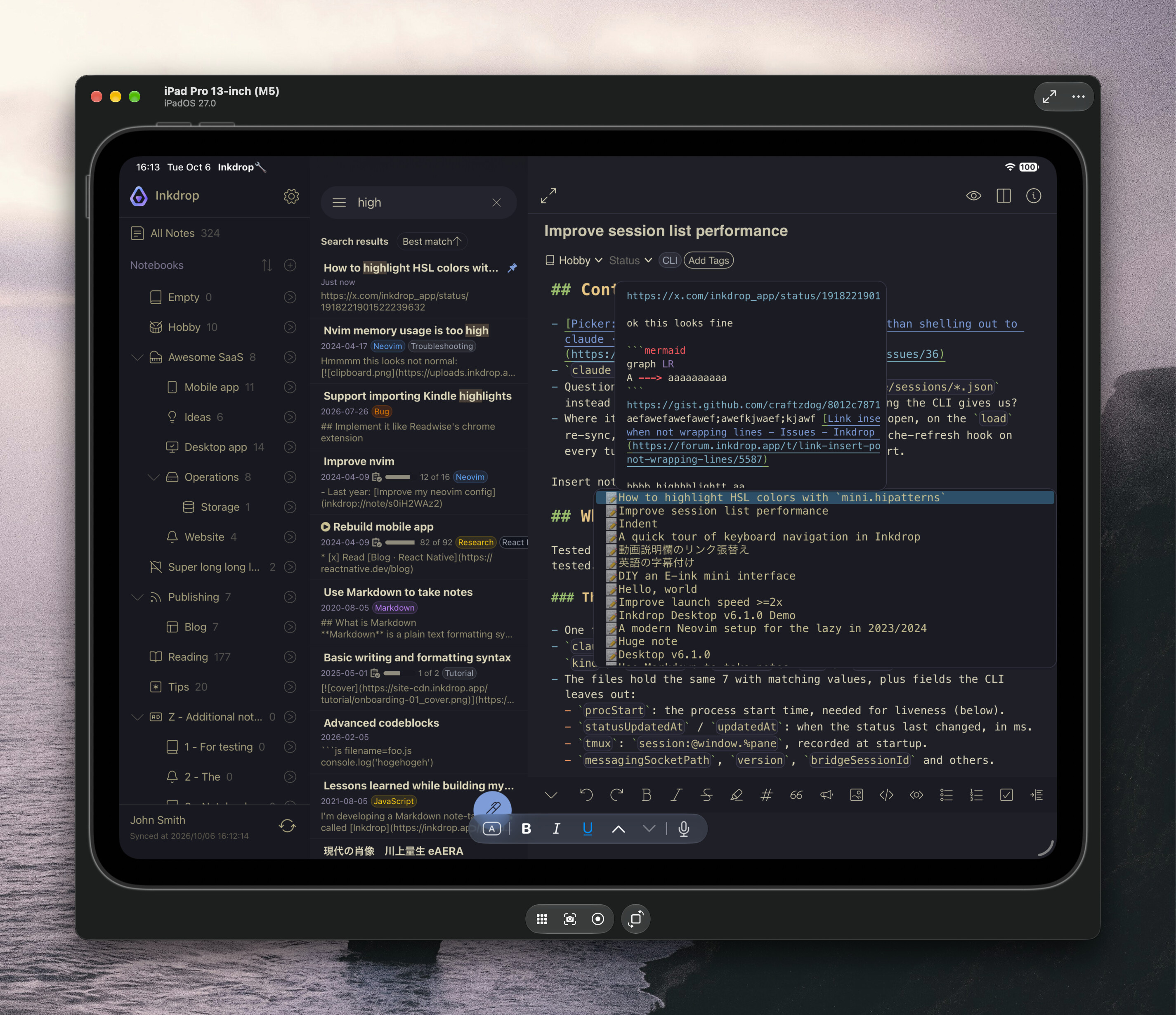
Type [[ to open a note picker and insert a link to another note.
It shows your recent notes first, and searches by title as you type.
You can also create and link a new note right from the picker, or use the “Note Link” slash command.
On iPad, it shows a preview of the selected note.
Toolbar improvements
- Open Link: When the cursor is on a link, an “Open Link” button appears in the toolbar. It opens the web page in your browser, or opens the linked note.
- Highlight: A new toolbar button for highlighting text.
- Slash commands: When the cursor is at the start of a line, a
/button appears in the toolbar. It opens the slash command menu. - On iOS, the toolbars now slide in and out smoothly together with the keyboard.
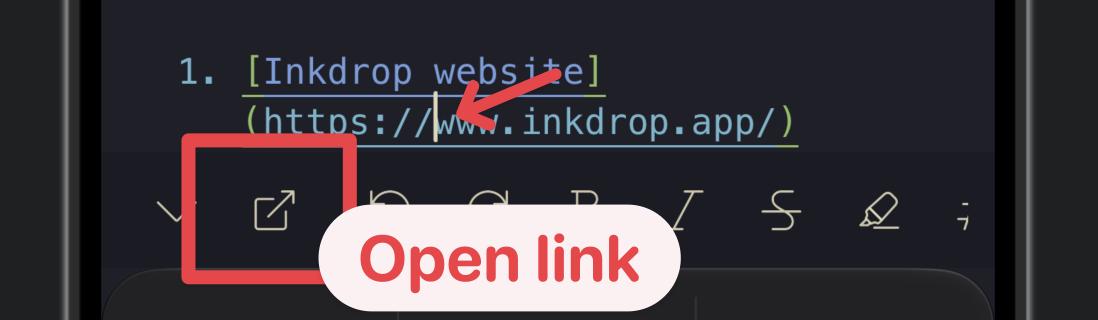
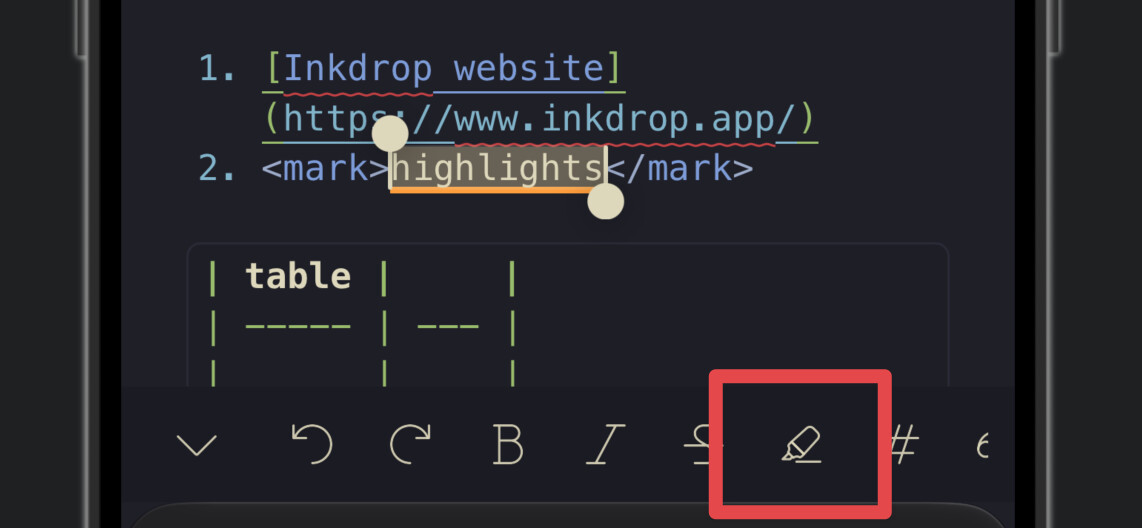
Table editing
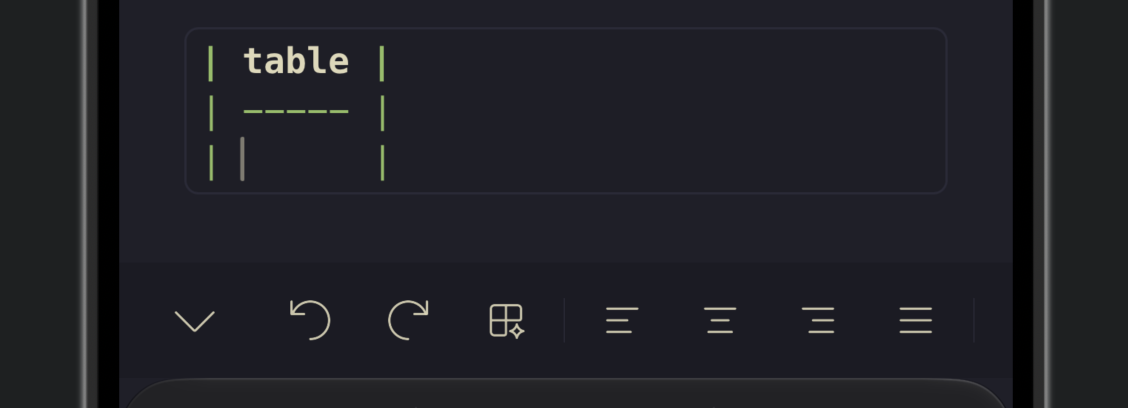
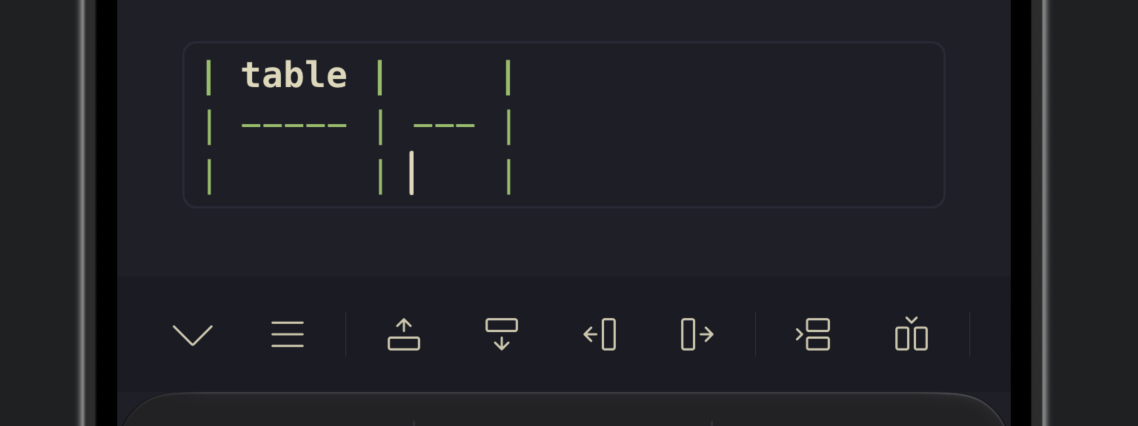
When the cursor is in a Markdown table, the toolbar switches to table buttons, just like desktop:
- Format the table
- Align columns
- Move rows and columns
- Add or delete rows and columns
For example:
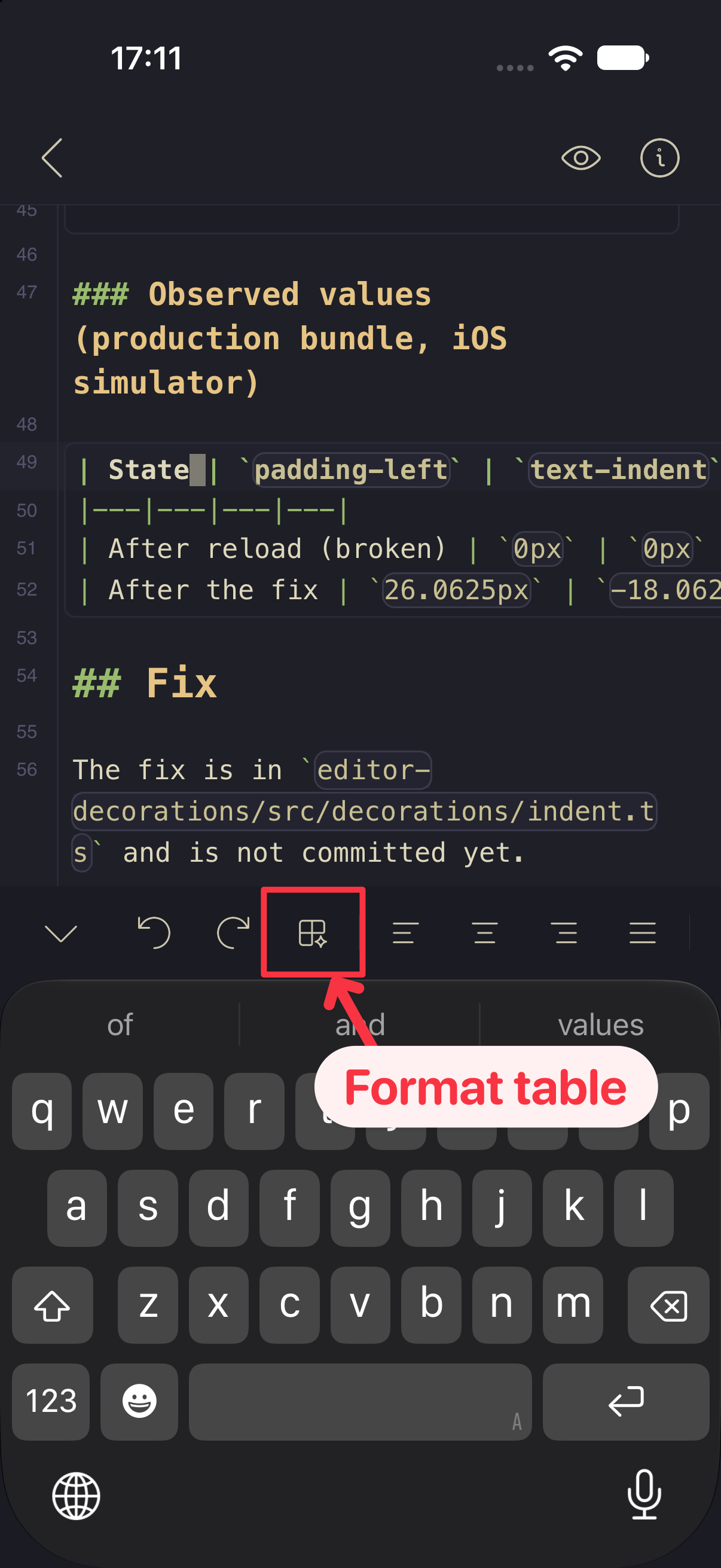
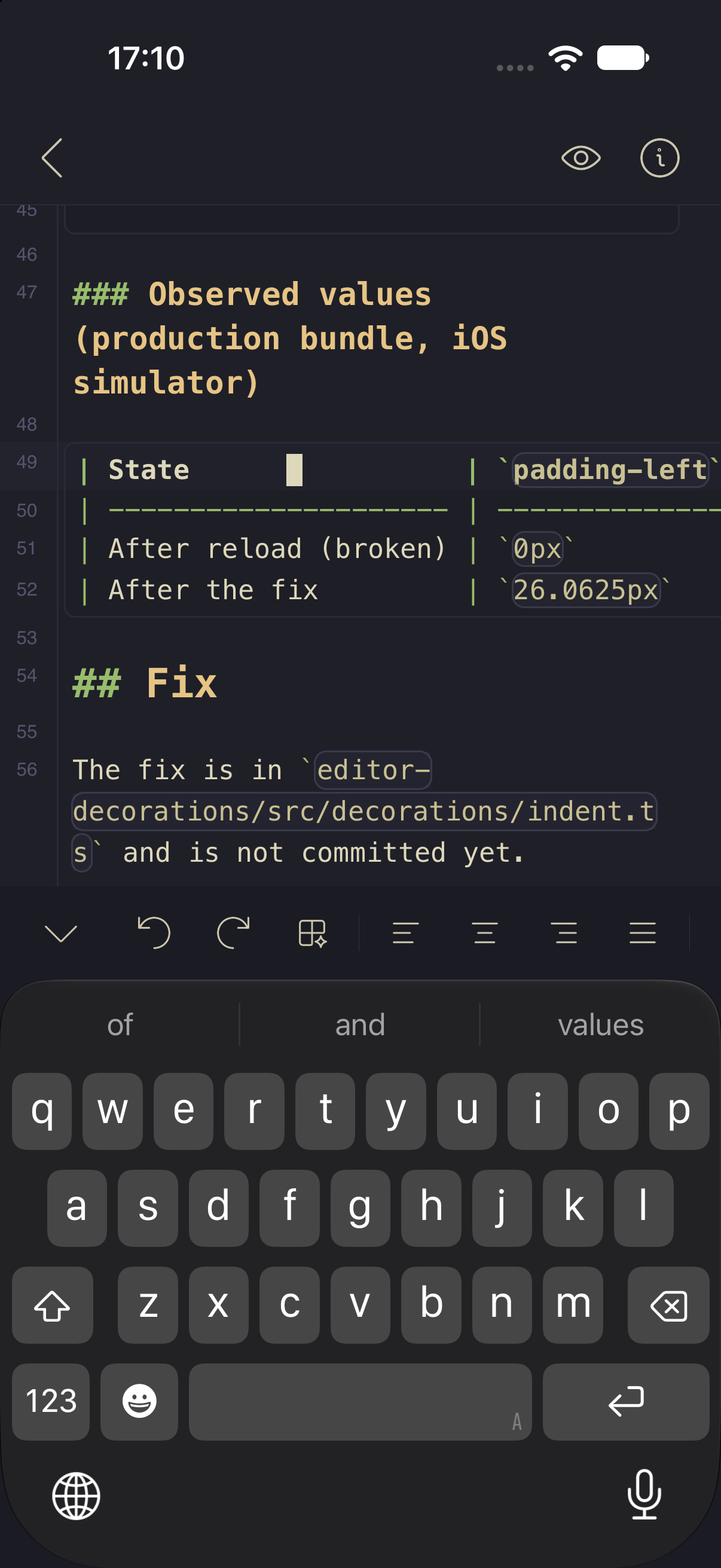
Unwrap tables and code blocks at the cursor
With line wrapping on, wide tables and code blocks are hard to read and edit because each row wraps across several lines.
The new “Unwrap at Cursor” mode fixes that: when the cursor enters a table or code block, that block stops wrapping and scrolls horizontally, and it wraps again when the cursor leaves.
Everything else keeps wrapping, and the line you’re editing stays in place on screen.
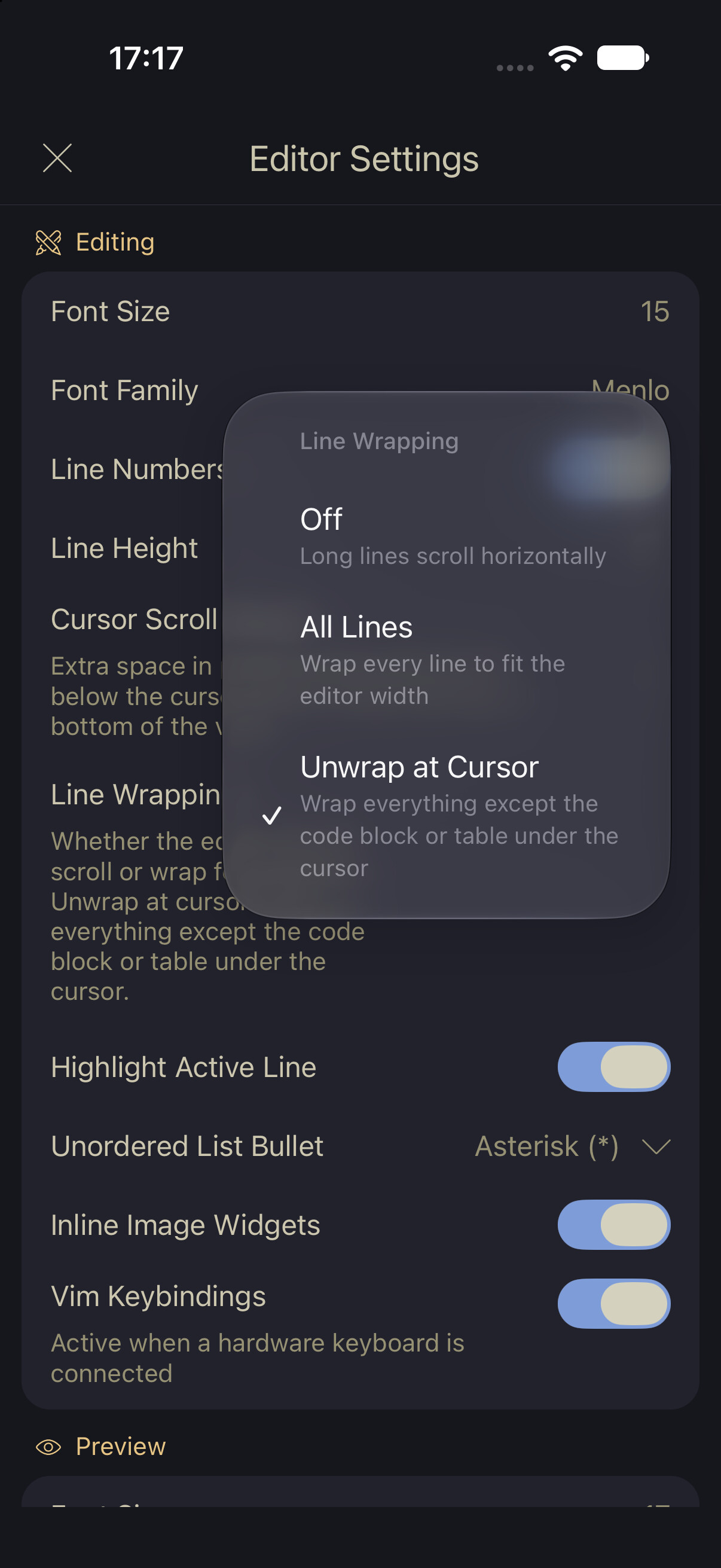
“Line Wrapping” in Editor Settings now has three options: Off, All Lines and Unwrap at Cursor.
Unwrap at Cursor is the new default.
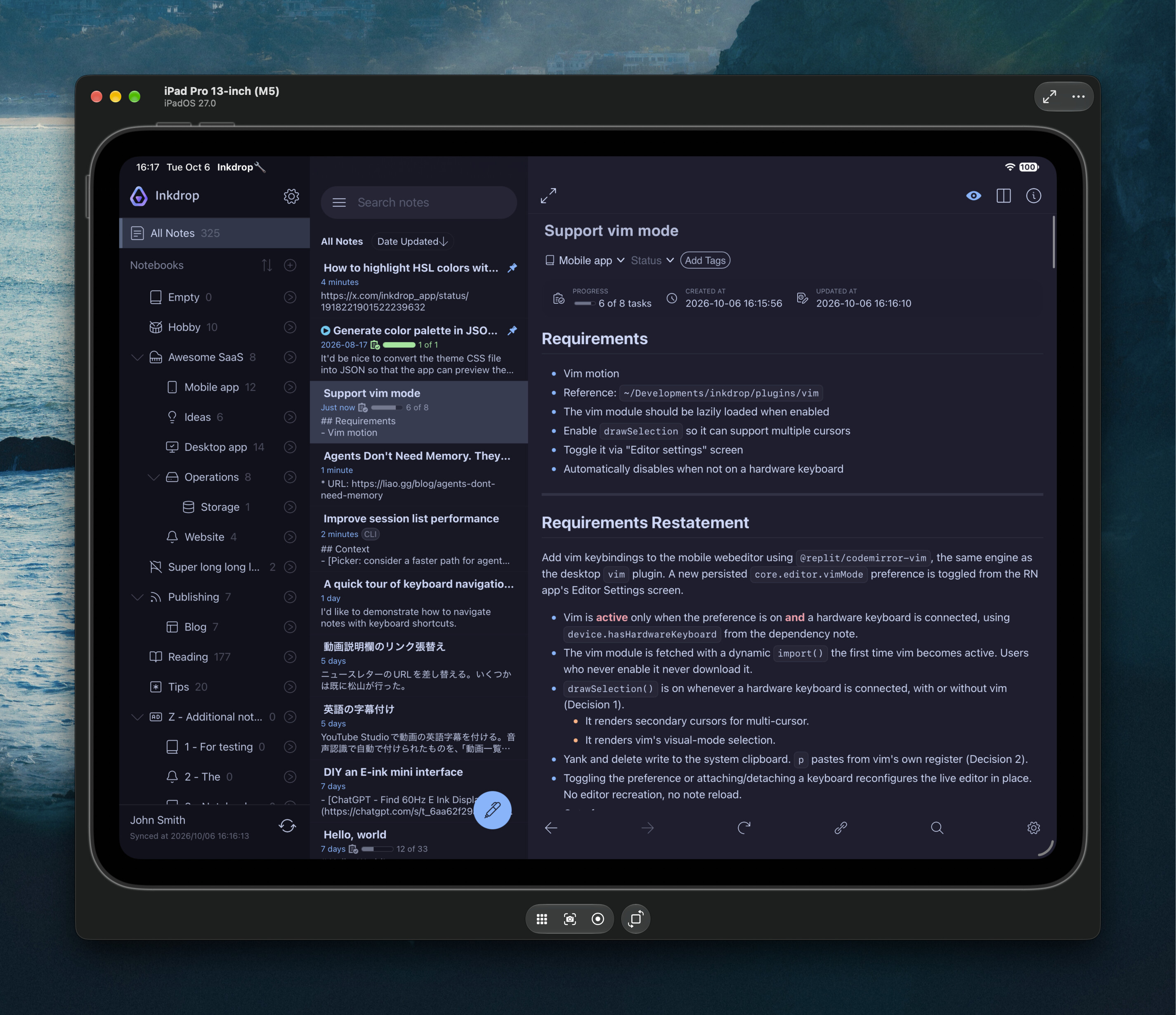
Vim keybindings
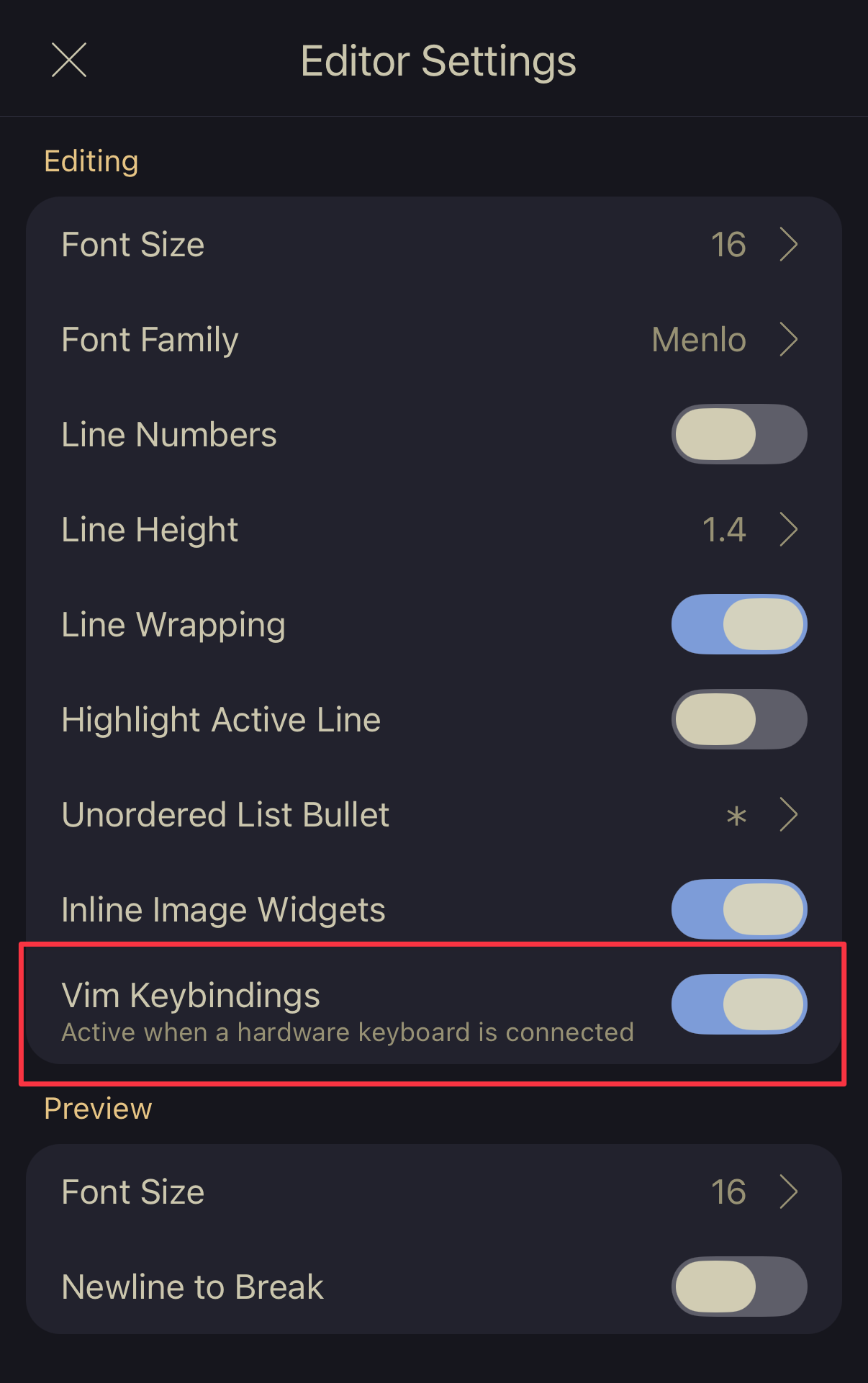
A new “Vim Keybindings” option in Editor Settings.
It is active while a hardware keyboard is connected.
Multiple cursors are also supported with a hardware keyboard.
Remembers where you left off
When you go back to a note, or open it again from the note list, the editor restores its scroll and cursor position, just like desktop.
The note opens right at that spot instead of jumping from the top.
 Keyboard shortcuts
With a hardware keyboard, you can now use the same shortcuts as desktop, on any screen:
| Shortcut | Action |
|---|---|
| ⌘-N | New note |
| ⌘-S | Save the note |
| ⌘-/ | Toggle the sidebar |
| ⌘-E | Toggle preview |
| ⌘-P | Toggle side-by-side mode (tablet) |
| ⇧-⌘-D | Toggle distraction-free mode (tablet) |
| ⇧-⌘-] / ⇧-⌘-[ | Open the next / previous note in the list |
| ⇧-⌘-F | Search notes |
| ⇧-⌘-P | Print the note |
- On iPad, they appear in the menu bar and in the overlay you get by holding ⌘.
- On Android, use Ctrl for ⌘. Android reserves the Win / ⌘ key for system shortcuts.
 Note templates
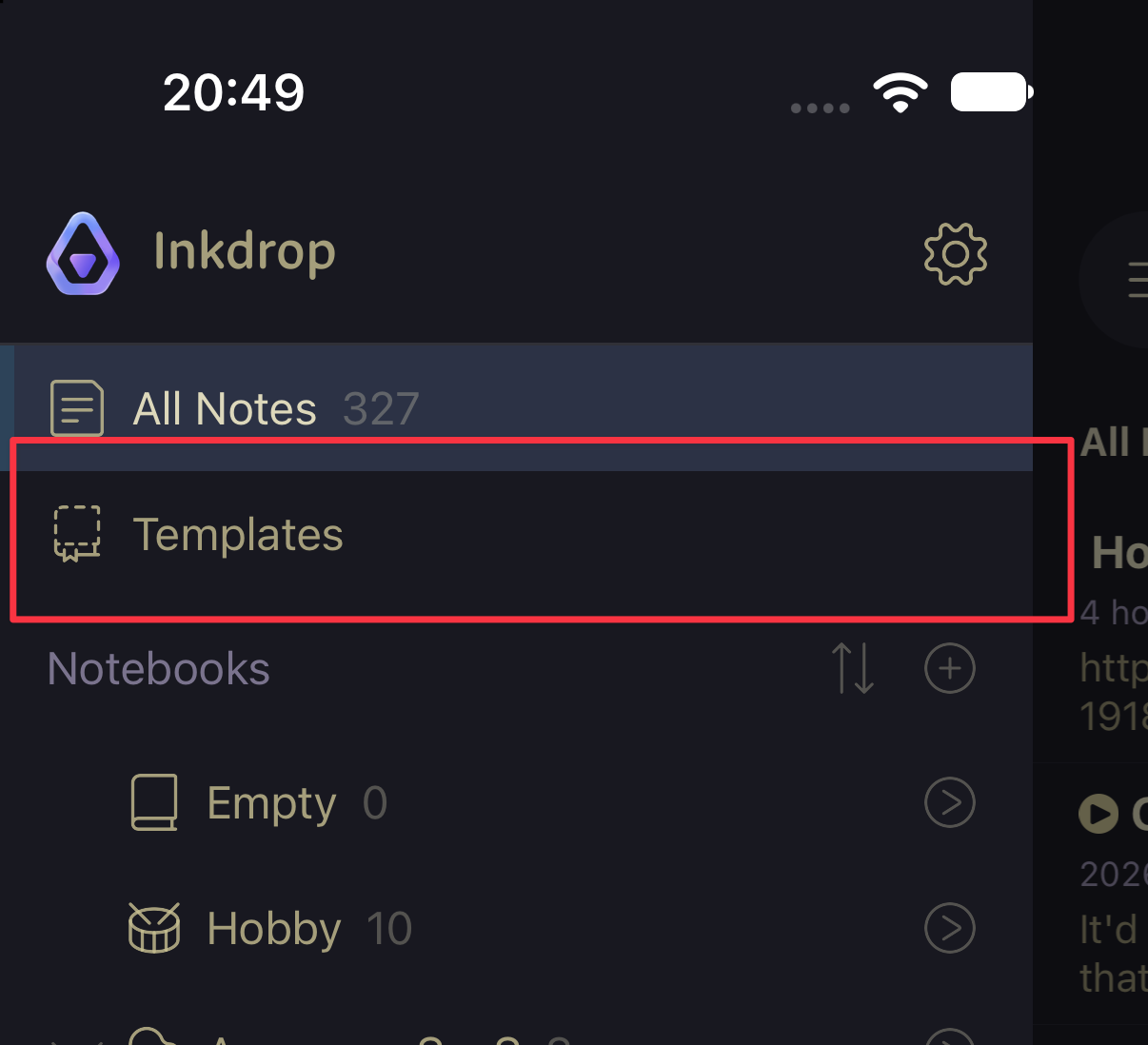
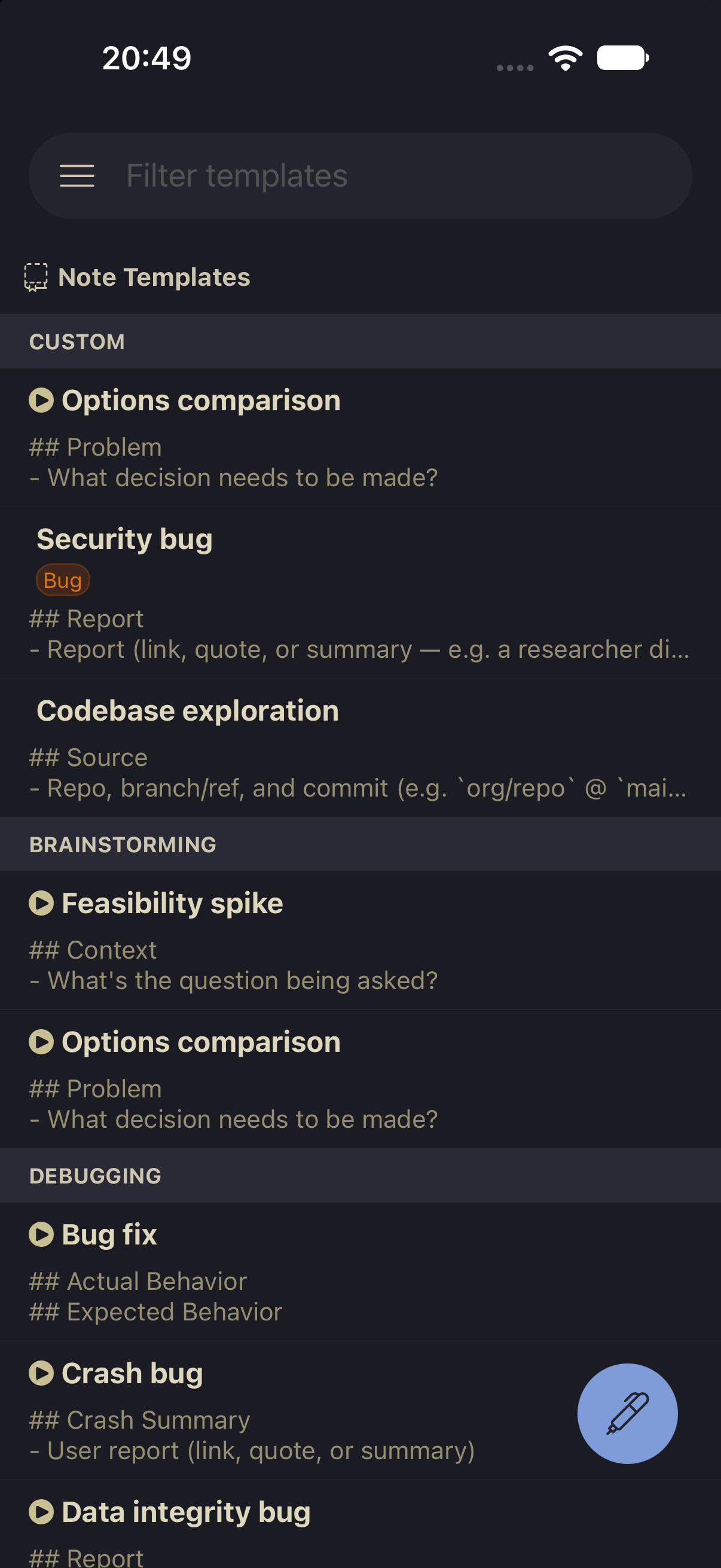
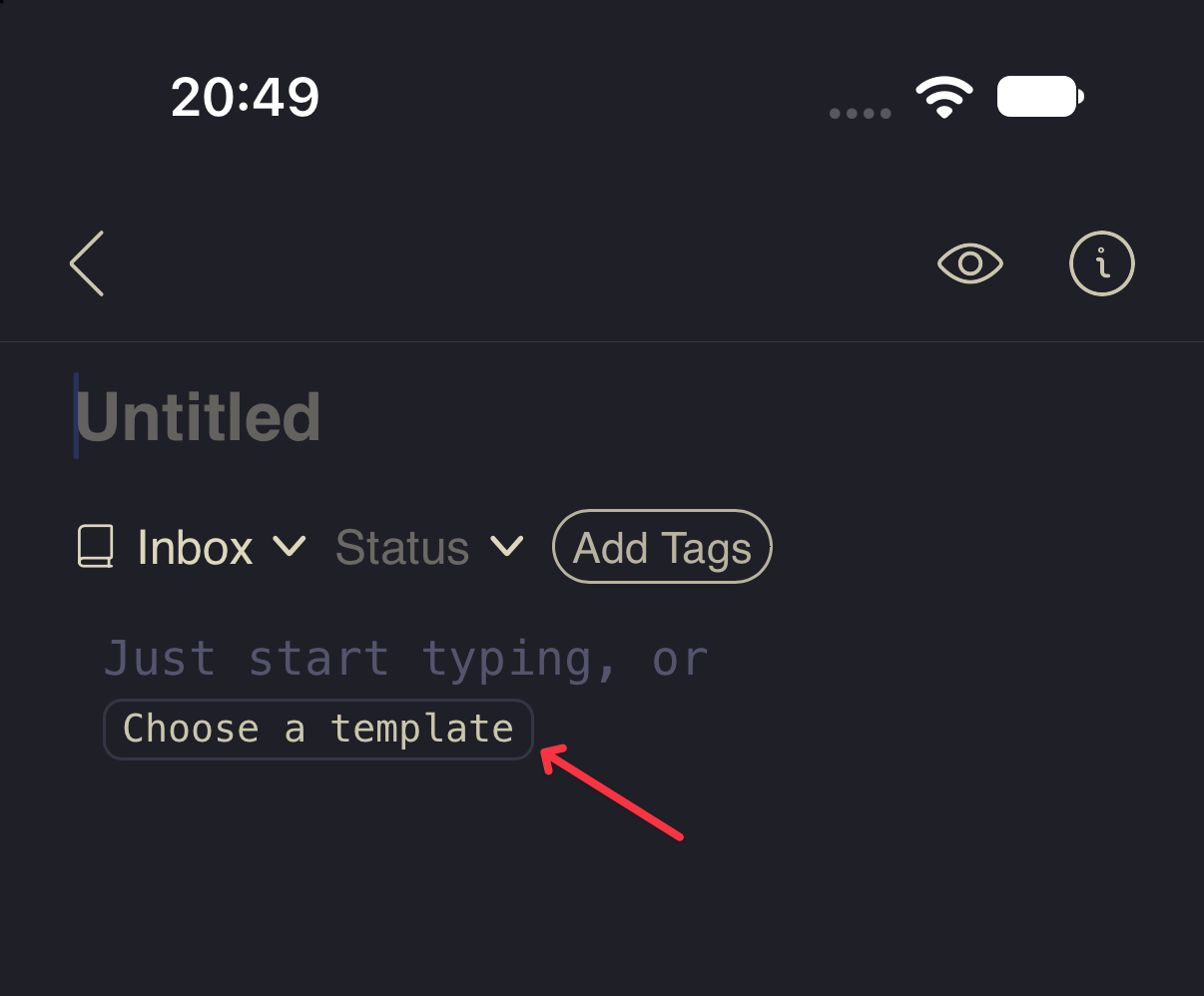
Note templates are now available on mobile!
- A new “Templates” item in the sidebar lists your custom templates and the official ones.
- When you open an empty note, tap “Choose a template” to pick one with a preview.
- Recently used templates are listed at the top.
Learn more: Note templates
 Themes from the plugin registry
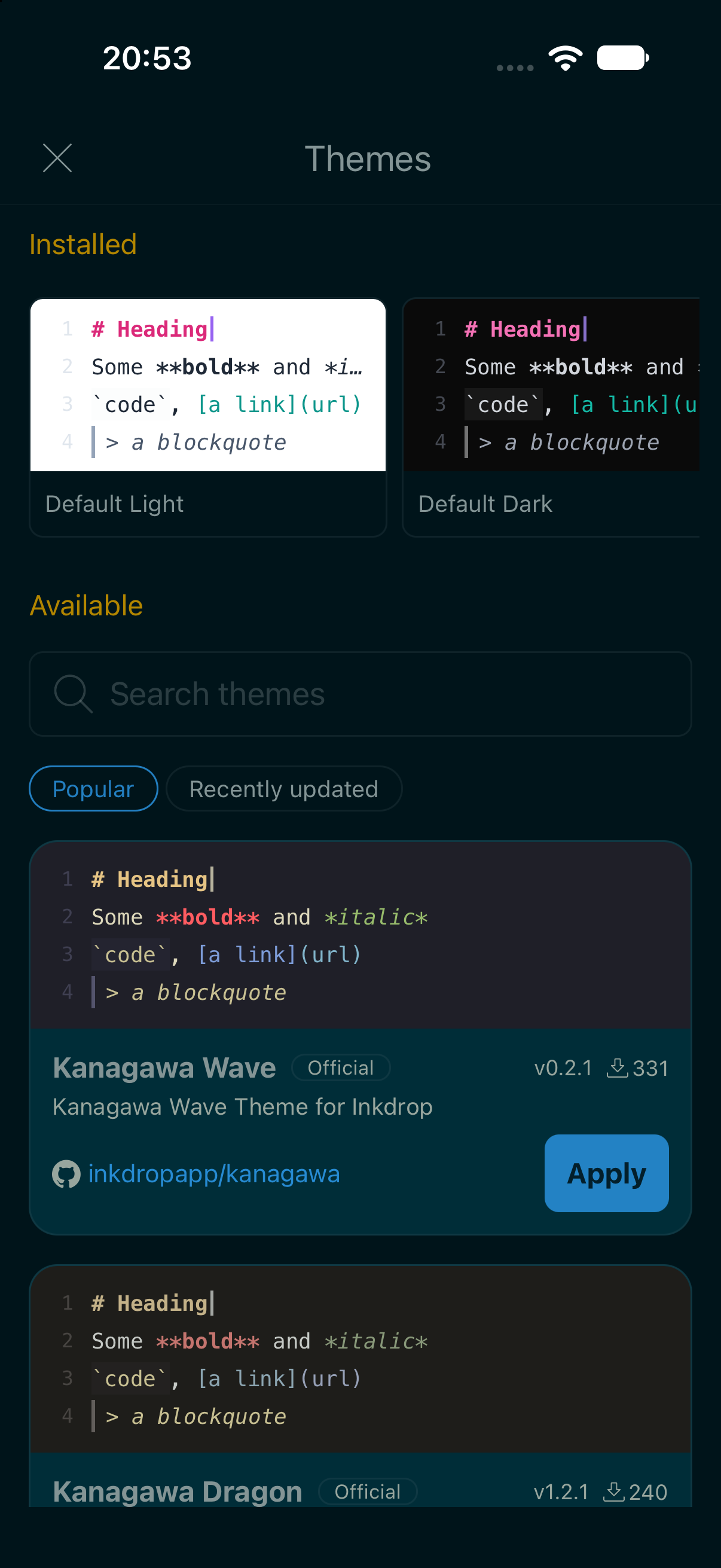
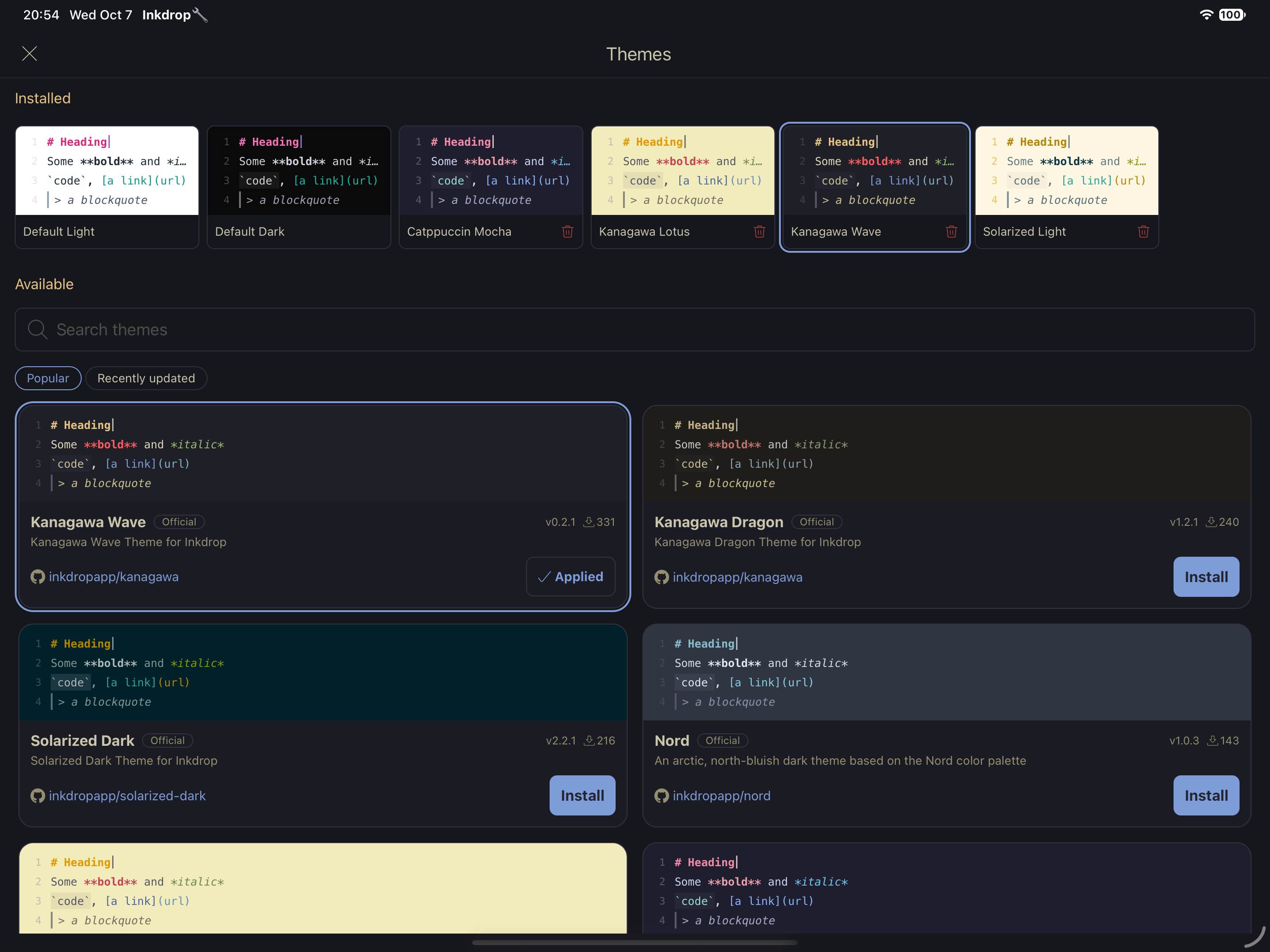
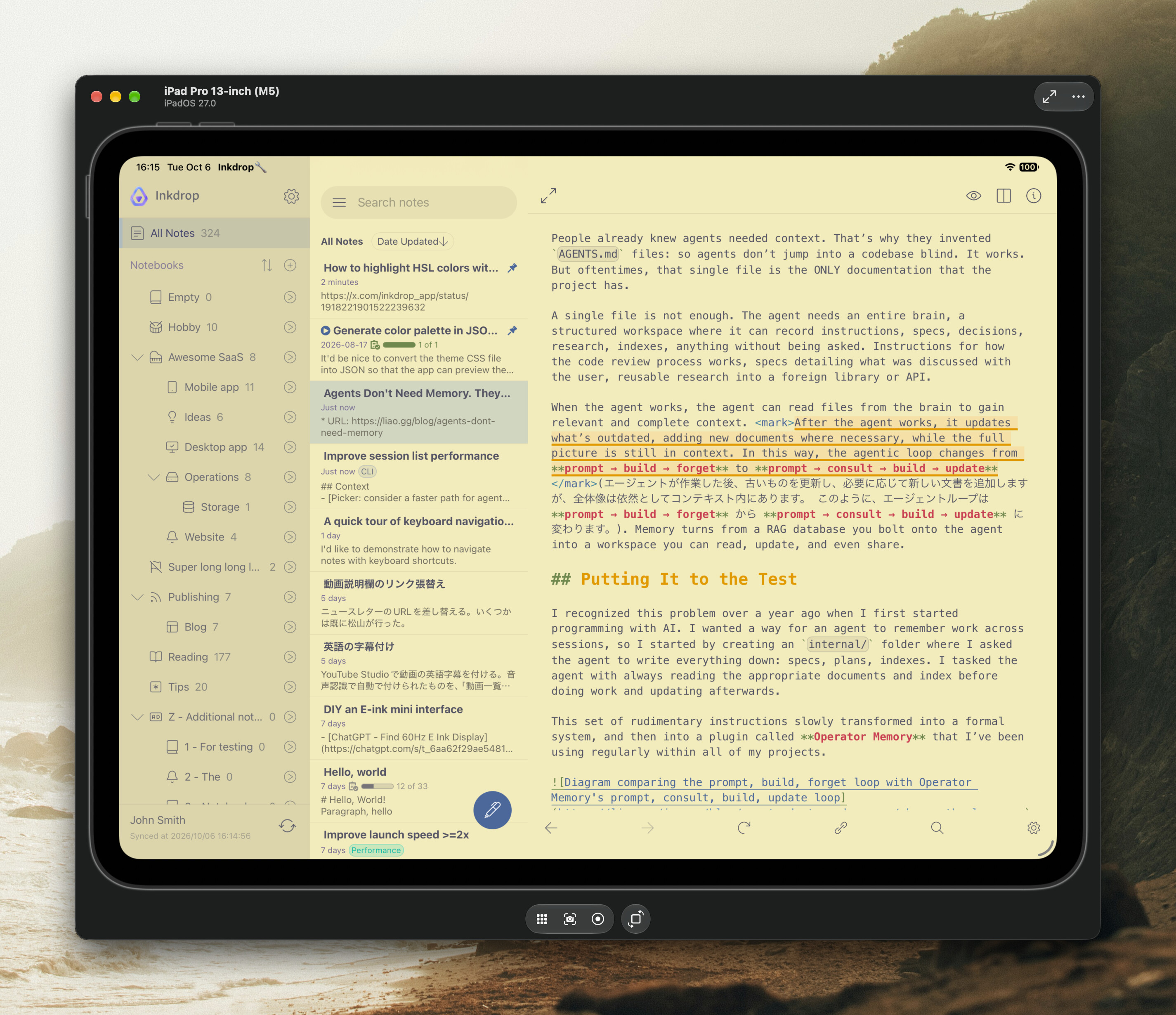
Settings → UI Theme opens a new Themes screen where you can browse, search, preview and install themes from the Inkdrop plugin registry, such as Nord, Solarized, Catppuccin, Gruvbox and Kanagawa.
Installed themes work offline and update automatically.
[!NOTE]
For theme developers, please upgrade@inkdropapp/theme-dev-helpersto 0.7.1 or later, regeneratepalette.json, and publish a new version of your theme.
The mobile app only lists themes whosepalette.jsonwas generated by this version, since older ones lack the metadata and resolved colors it needs.
 Notebook improvements
Notebook icons
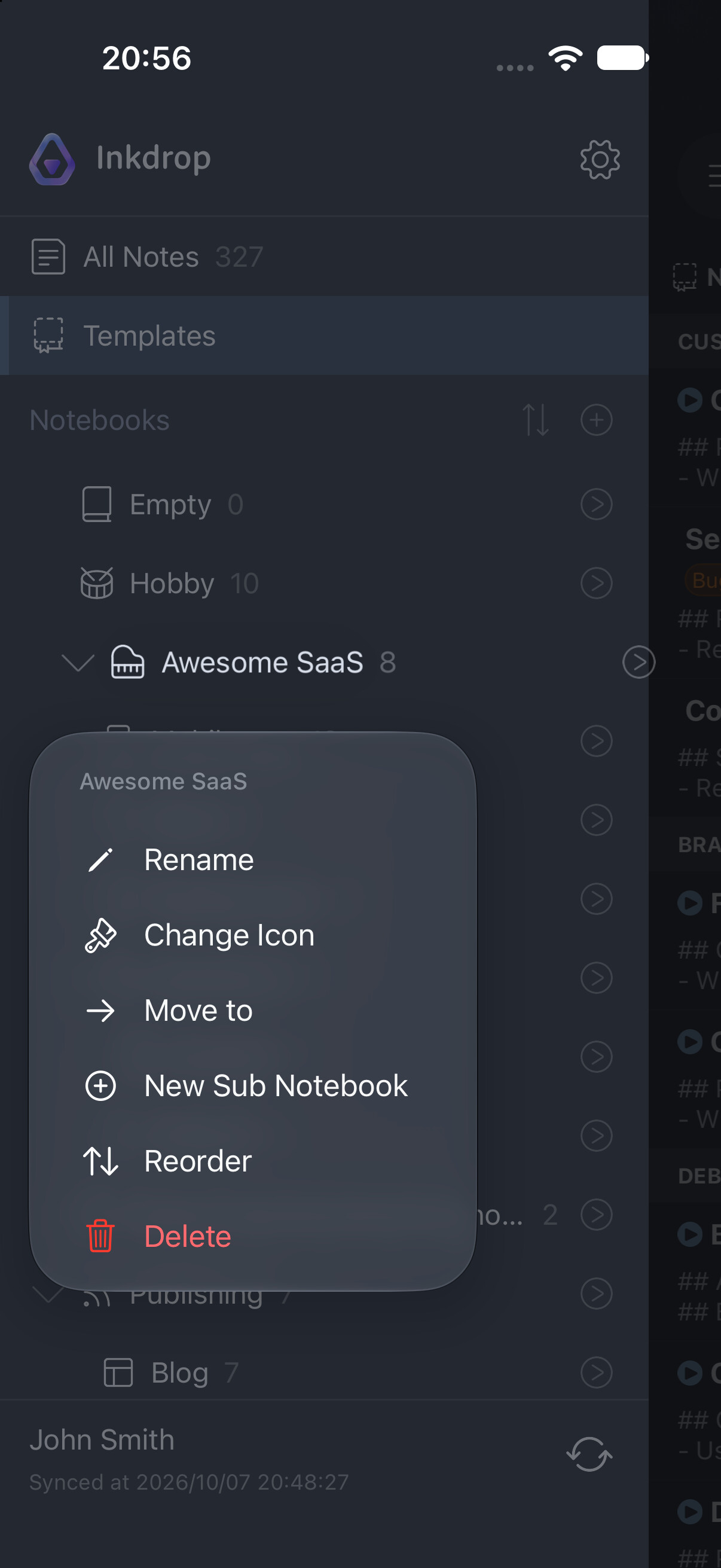
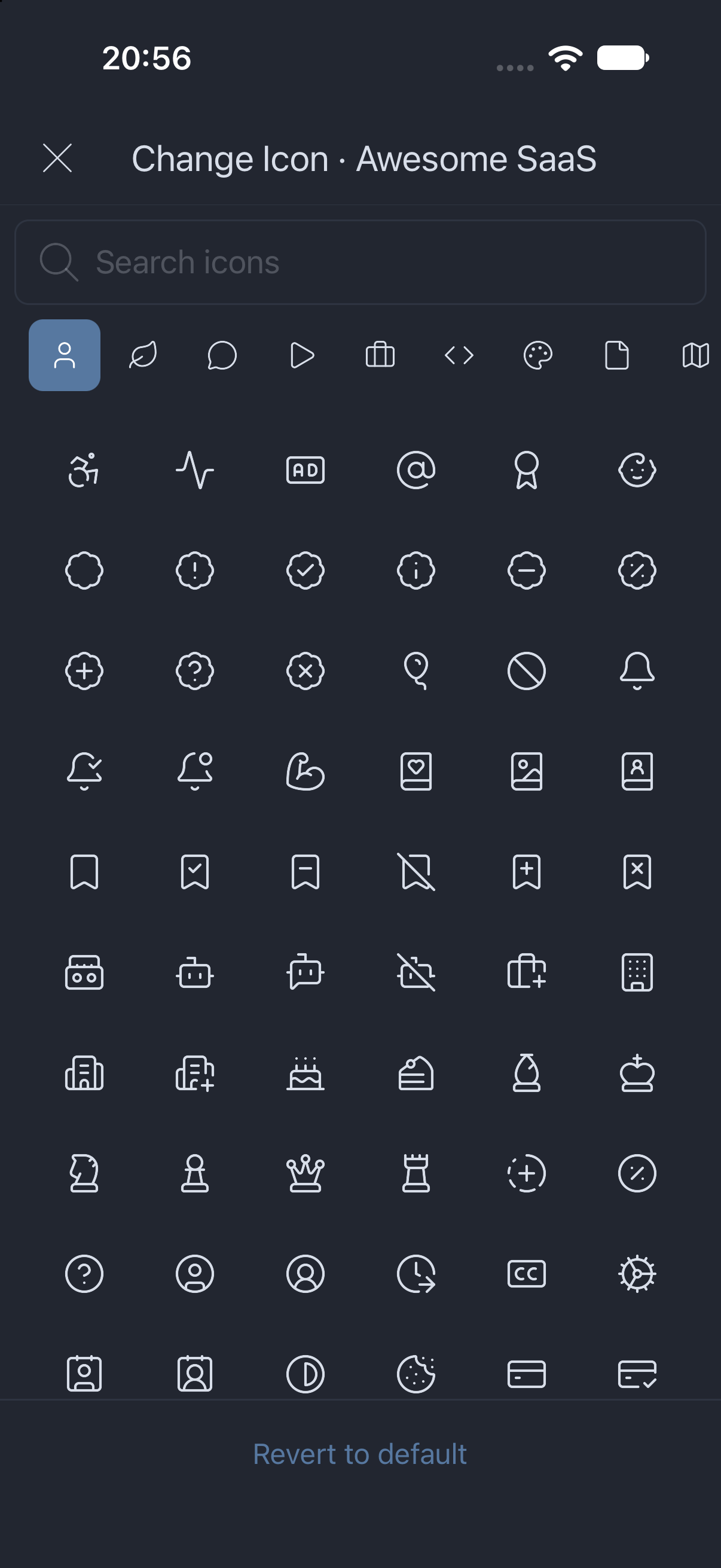
You can now set an icon on each notebook, from the same icon set as desktop.
Long-press a notebook and choose “Change Icon”.
Icons are shown in the sidebar and sync with desktop.
Reorder notebooks
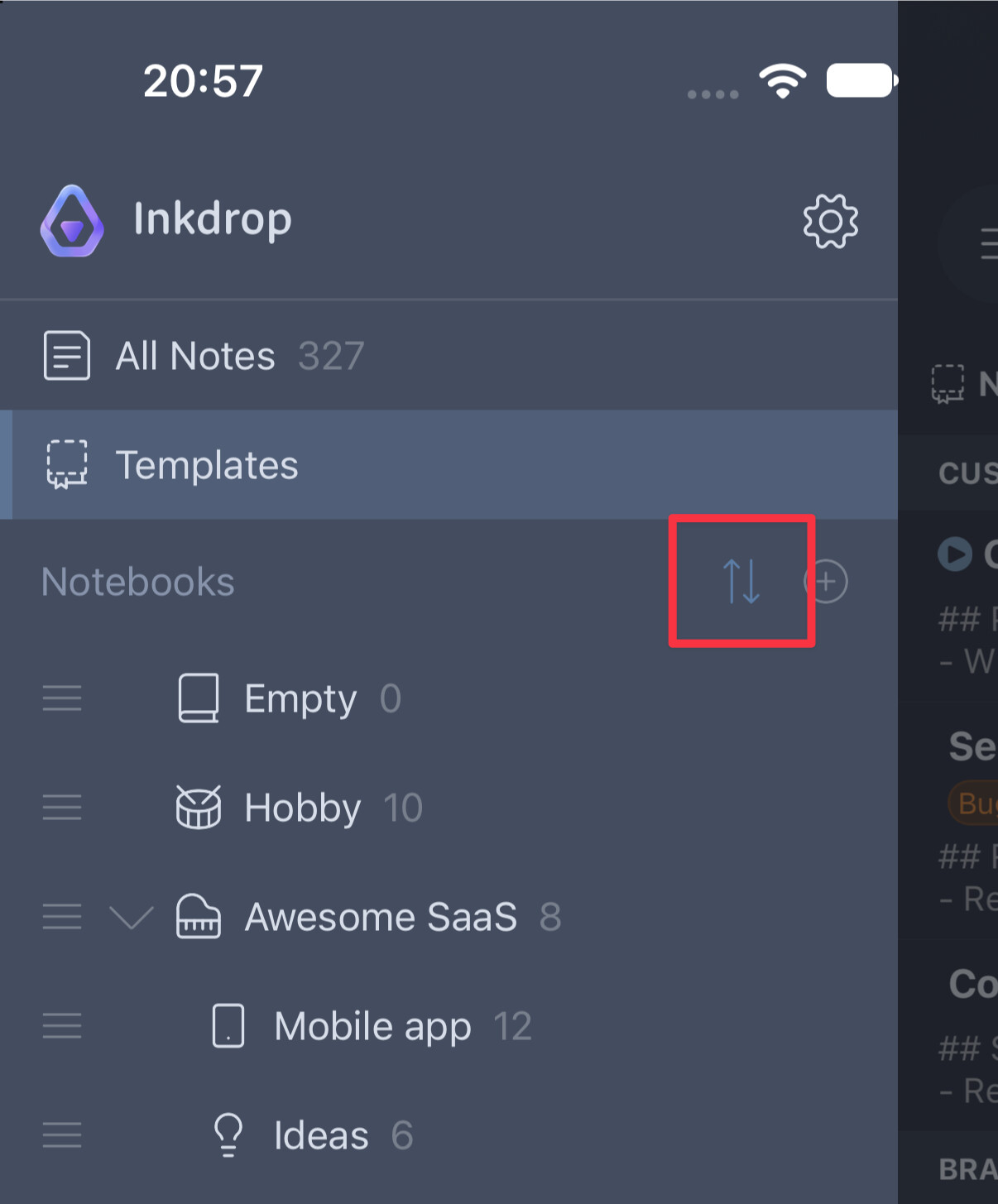
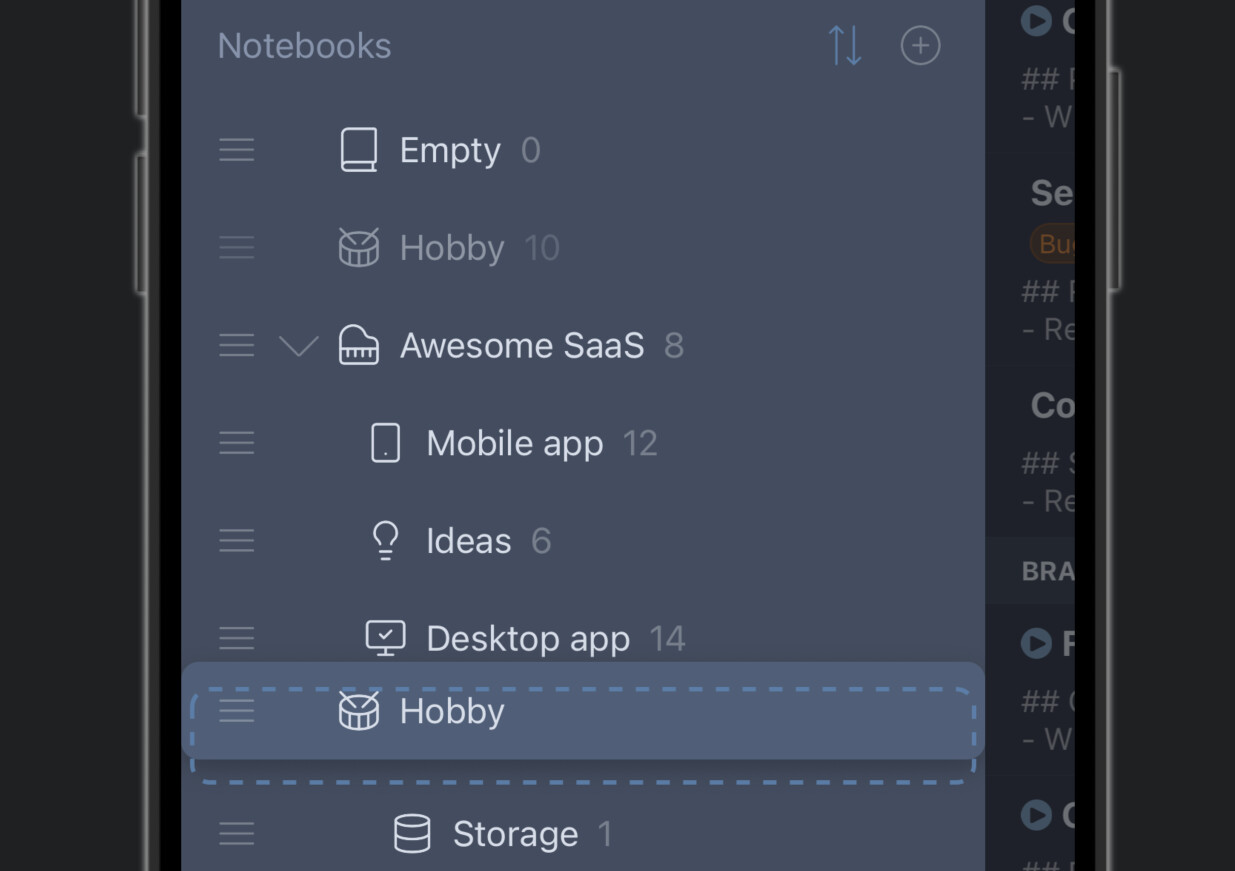
You can now reorder notebooks by drag and drop.
Tap the reorder button in the sidebar, or long-press a notebook and choose “Reorder”, then drag a notebook before, after, or into another one.
The order syncs with desktop.
Learn more: Organize notebooks
 Highlighted search results
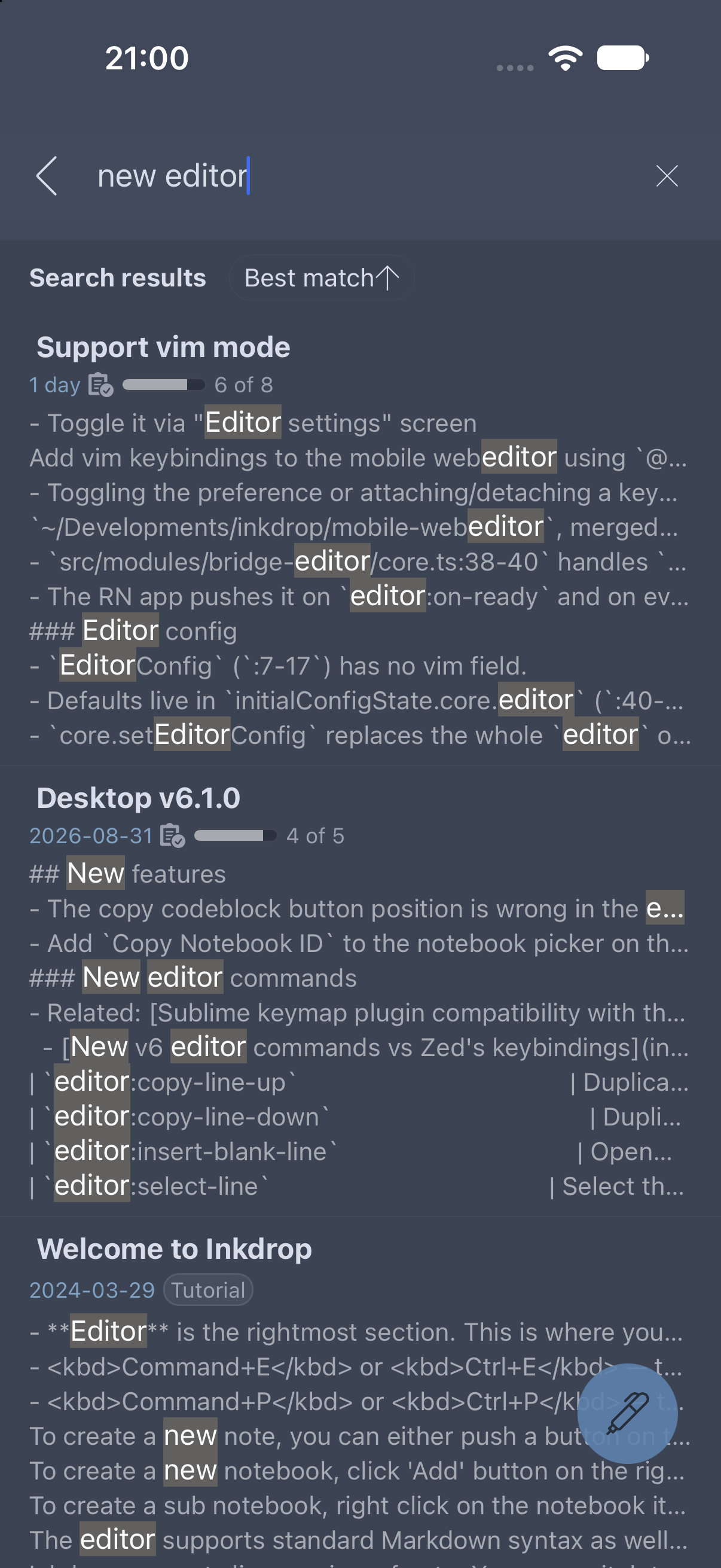
Matched keywords are now highlighted in the note list when searching, like desktop.
Learn more: Search and filter notes
Other improvements
 GitHub page titles for private repos
Inserting a GitHub link “With page title” now fetches the correct title, even for private repos, issues and pull requests.
It uses the GitHub account you connected on the desktop app.
 Landscape on iPhone
The app now supports landscape orientation on iPhone.
The note list and sidebar stay clear of the notch when rotated.
On iPad, the Settings screens are now narrower and easier to read.
 Faster attachment uploads
Images and other attachments now upload directly to storage, so they finish faster.
 Bug fixes
- Fixed the app crashing in the background on iOS when a sync was running.
- Fixed a “Failed to upgrade the database — Document update conflict” error that could appear after updating.
- Fixed a crash after logging out.
- The header bar now reappears after tapping the status bar to scroll to the top of the note list.
- Fixed the PDF share popover on iPad.
- The scroll position now stays in sync when switching between the editor and the preview.
- Removed the extra left padding in the editor when line numbers are shown.
- On iPad, moving the open note to the trash no longer leaves it visible in the editor.
- On Android, swiping a note in the list no longer gets in the way of scrolling.
- Fixed the swipe action showing through the note list after a short swipe.
- Fixed the editing toolbar sometimes staying hidden behind the keyboard.
- Fixed the iOS keyboard sliding down and back up when closing it.
- On Android, keyboard shortcuts now work while typing in the editor with Gboard.
 Download now
The apps are available on App Store and Play Store:
Thanks as always for your support 
Cheers,
Takuya