This update brings a lot of native features: home screen widgets, Siri, Spotlight, background sync and the app icon menu. They all need the system to reach your Inkdrop notes without the app being open, so I’ve been working hard on letting iOS and Android access your notes natively. That groundwork is what makes these features possible. And thanks to AI, it was much easier to get there than it would have been before.
I believe these features help a lot with the workflow between you and your AI agents. Your agents write their plans and progress into Inkdrop, and now you can check on them quickly, anywhere and anytime: a glance at a widget shows which notes moved and how far their tasks are, Siri can summarize a plan for you, and background sync keeps it all fresh. I’ll keep improving the mobile app to support this agent workflow!
Home screen widgets
You can now put your notes on the home screen, on both iOS and Android. There are two widgets:
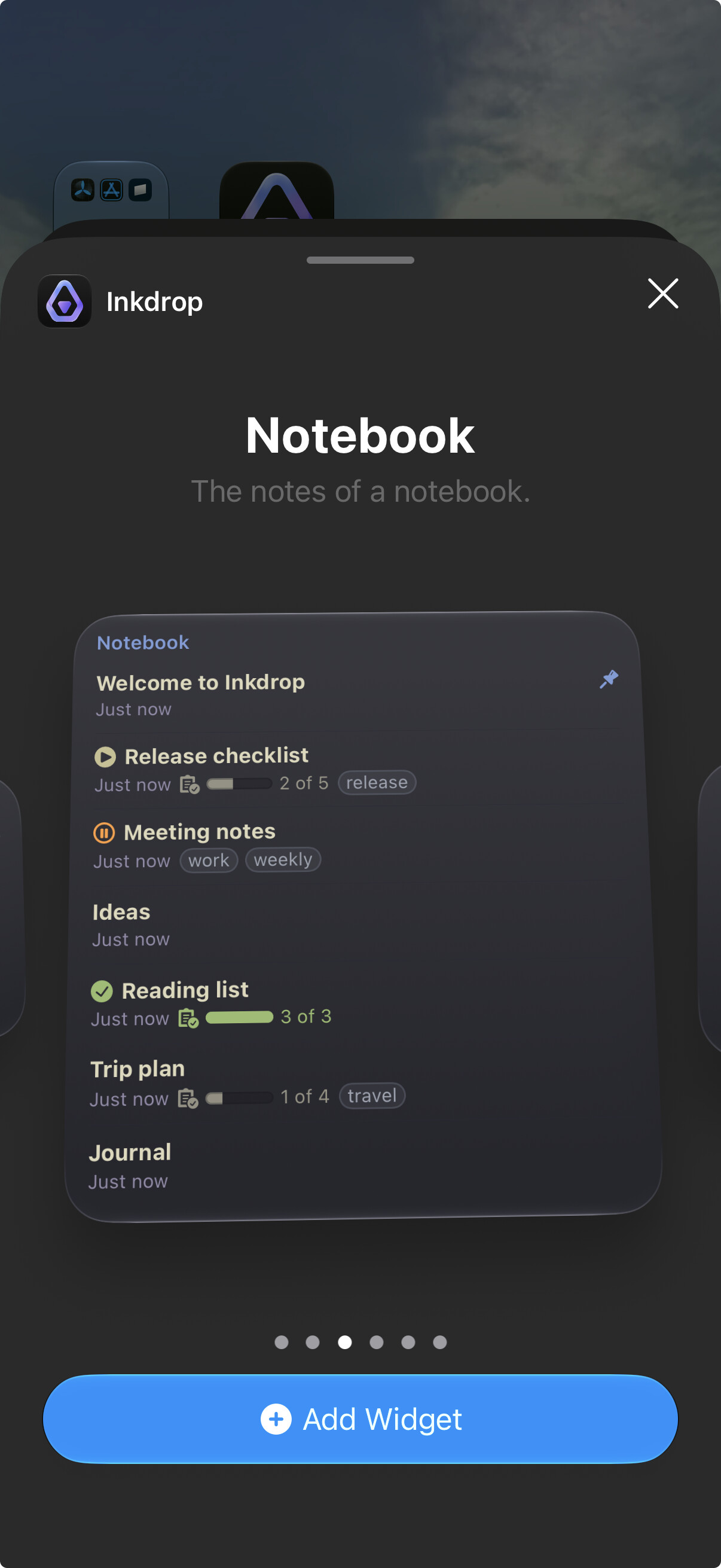
- Notebook: Lists the notes of a notebook you pick, optionally with the notes of its sub notebooks.
- Pinned Notes: Lists your pinned notes.
A row looks like the one in the app’s note list: the status, the title, when the note was updated, the task progress and the tags. Tap a note to open it in the app. The widgets use the colors of your app theme, including the themes you installed.
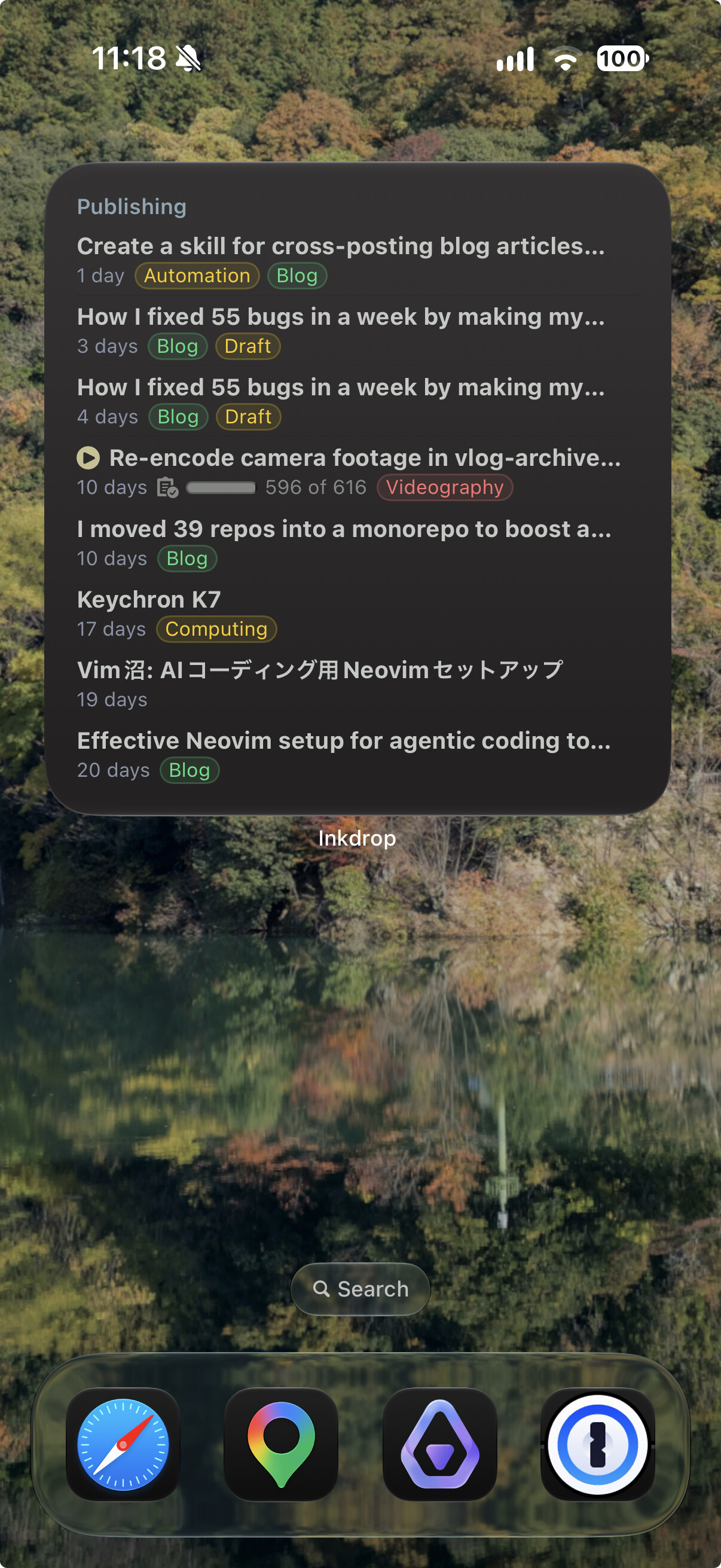
To add one, long-press the home screen and pick Inkdrop from the widget list:
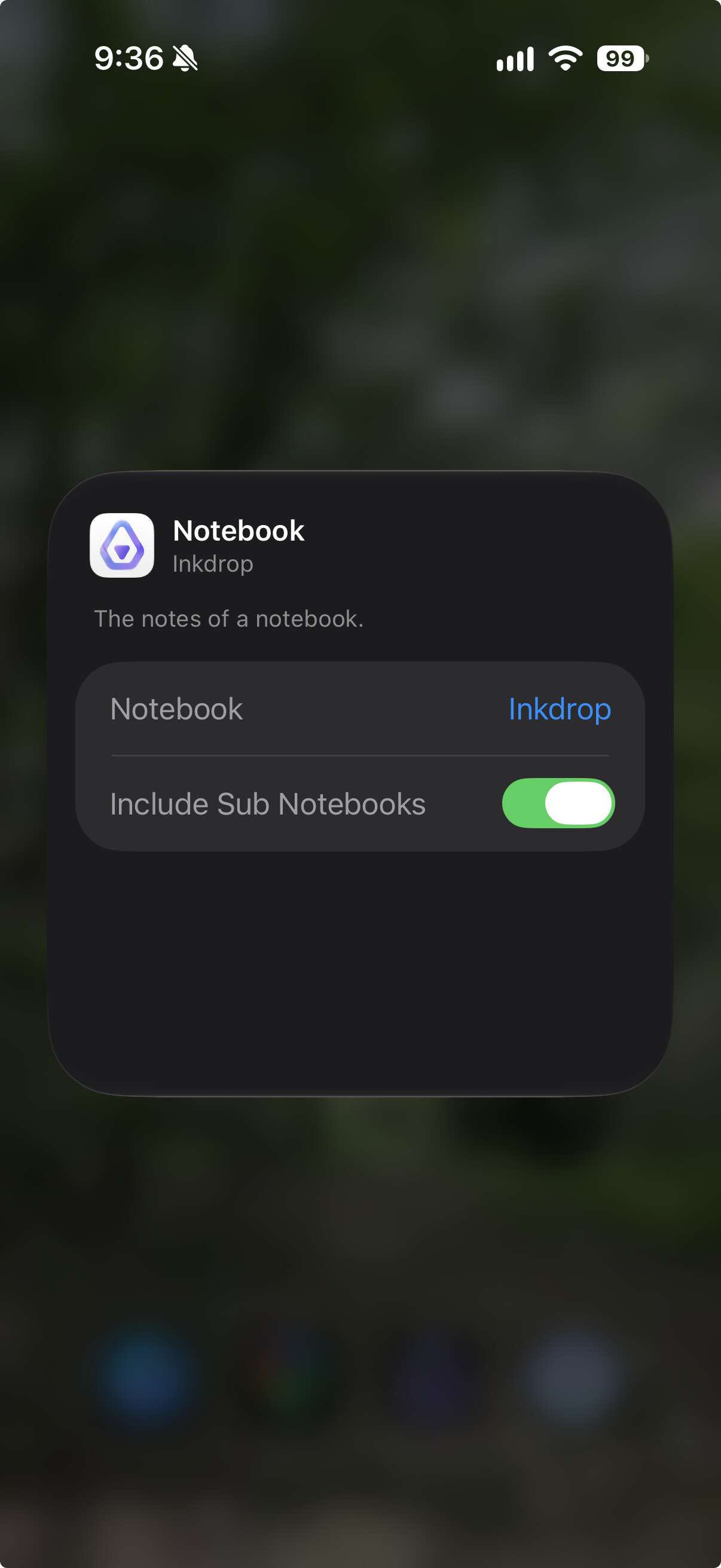
Then pick the notebook in the widget’s settings. The Include Sub Notebooks option there also lists the notes of its sub notebooks. It is off by default:
Siri and Spotlight (iOS)
Your notes now show up in Spotlight. Swipe down on the home screen and search by a note’s title, its tags or its text, then tap a result to open the note in Inkdrop.
On iOS 27, Siri can use your notes, too. Ask it to find notes about a topic, to summarize a note, or to open one:
The search index stays on your device. It can’t be read while the device is locked, and it is cleared when you sign out. If you don’t want your notes in Spotlight or Siri, you can turn that off for Inkdrop in the iOS Settings.
Background sync
The app now syncs from time to time while it is closed, on iOS and Android, so your notes are already up to date when you open it. The widgets and Spotlight benefit from it as well.
The system decides when an app may run in the background, based on how often you use it, the battery and the network. So it doesn’t happen at fixed times.
New Note from the app icon
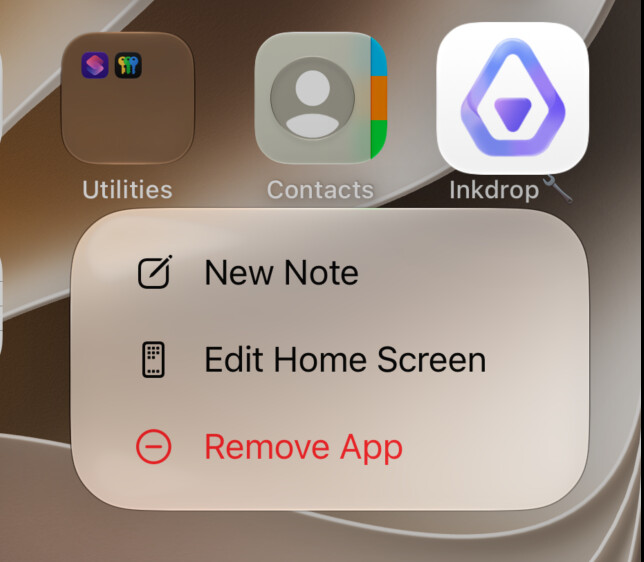
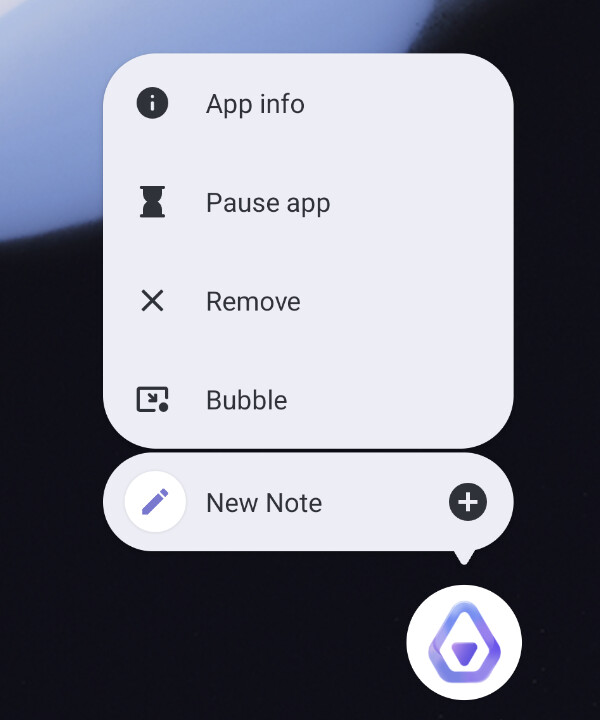
Long-press the app icon and choose New Note to start writing right away.
Links to a line or a heading of a note
Note links can now point to a place inside a note. The desktop app will support this soon, too:
inkdrop://note/<ID>#L5: a lineinkdrop://note/<ID>#L5-L8: a range of linesinkdrop://note/<ID>#<heading>: a heading
Opening such a link takes you to that place, in the editor and in the preview. In the preview, a note link to lines shows them after the title, e.g., Meeting notes (L5-L8).
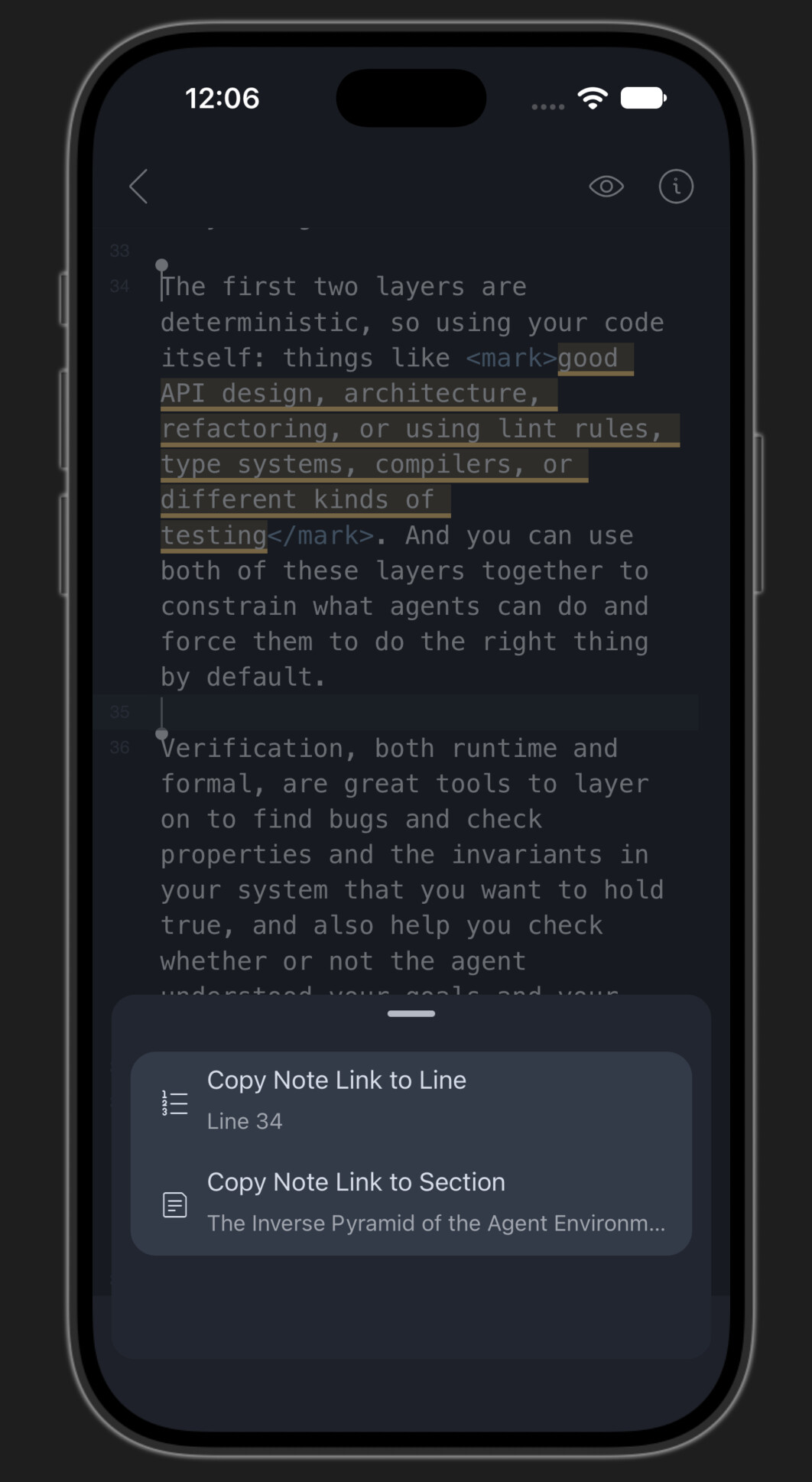
To copy such a link, turn on the line numbers in the editor settings and long-press a line number. A menu offers Copy Note Link to Line and Copy Note Link to Section.
A link to a heading of the same note, e.g., [Setup](#setup), now jumps to that heading, too.
Other improvements
- Notebook picker: The filter matches fuzzily against the full path of a notebook, so typing a parent’s name also lists its sub notebooks. The matched characters are highlighted
- Note list: The sidebar, the note list and the notes’ ages are refreshed when you come back to the app
- Preview: Remember whether the backlinks are expanded or collapsed
Bugfixes
- Editor: The paste menu didn’t appear when long-pressing an empty line (Thanks @Helix_Munn)
- Search: Clearing a search in All Notes could go back to a notebook opened earlier, and the next search then covered only that notebook (Thanks @Helix_Munn)
- Search: “Filter by tag” did nothing while the note list showed search results
- Note list: Tapping a note right after going back sometimes didn’t open the editor
- Note list: Notes without a status had an empty gap before the title
- Editor: An edit made just before the editor closed could be left unsaved
- Editor: The Conflicted button did nothing when a conflict arrived while the note was open
- Editor: Switching to side-by-side opened the software keyboard
- Insert link: “With page title” kept loading for some links
- Preview: A change of the line break setting was applied only after reopening the note
- Share on web: The Share button didn’t open the share sheet
- Sharing a link to Inkdrop: Tapping “Include Page Content” opened the notebook picker, and a page without a title wasn’t saved
- Note revisions: The list could show the revisions of the note opened before