This is hopefully the final release candidate.
I fixed some issues and added an improvement that I found I needed to fix while preparing for the official release.
Connect your notes to AI agents in a few clicks
Inkdrop’s MCP server lets AI agents like Claude Code and Codex read and write your notes.
Setting it up used to mean reading the docs, enabling the local HTTP server, inventing a username and password, and hand-writing a JSON config file — enough friction that most people never got there.
Preferences → Integrations now has a dedicated MCP Server section that does all of that for you:
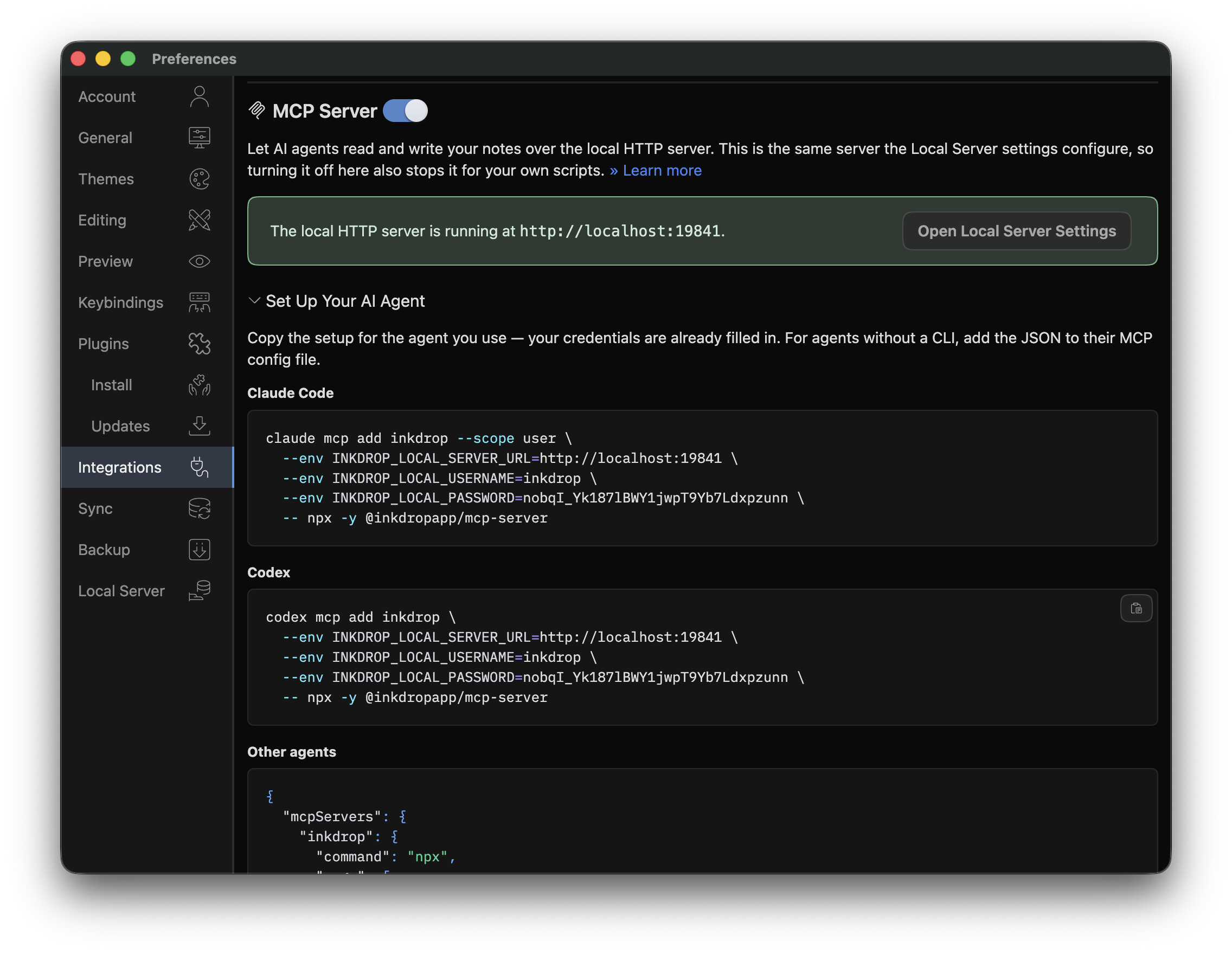
Flip the switch and Inkdrop starts the local HTTP server, generating credentials automatically if you don’t have any yet.
Then expand Set Up Your AI Agent and copy the ready-to-paste setup for your agent — a one-liner for Claude Code, one for Codex, and a JSON snippet for everything else — with your port and credentials already filled in:
claude mcp add inkdrop --scope user \
  --env INKDROP_LOCAL_SERVER_URL=http://localhost:19840 \
  --env INKDROP_LOCAL_USERNAME=inkdrop \
  --env INKDROP_LOCAL_PASSWORD=**** \
  -- npx -y @inkdropapp/mcp-server
One thing to keep in mind: this switch controls the same local HTTP server that the Local Server preferences pane configures, so turning it off also stops the server for any scripts or integrations that rely on it.
The documentation has been rewritten around this flow: Integrate AI agents with the MCP Server
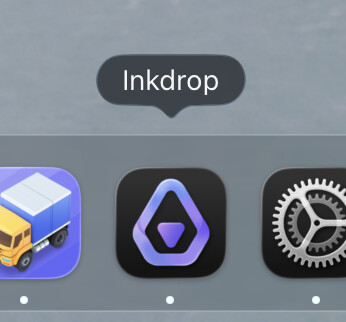
A Dark Mode-aware app icon on macOS
The macOS app icon now ships as an Icon Composer asset instead of a flat image, so macOS can render its Dark Mode, tinted, and clear appearance variants.
The icon in your Dock, Finder, and Launchpad now follows your system appearance rather than showing the same light artwork everywhere.
Improve performance of rendering codeblocks
Notes with very long code blocks used to be slow to display — the app could stutter, or stop responding entirely, while the code was being syntax-highlighted.
That highlighting is now far cheaper, so large notes show up in a fraction of the time.
The most visible case was the note link autocomplete.
Typing [[ could lock the app up for 10–20 seconds when a note with a huge code block happened to be in the candidate list — arrow keys and Esc stopped responding until it finished.
That’s fixed, and the preview beside the candidates now shows a snippet rather than the entire note, so it stays snappy no matter how large your notes are.
Bug Fixes
- Exporting a selection of notes silently did nothing when a title contained a character the filesystem rejects — a colon on Windows, a slash anywhere. Exporting a whole notebook was unaffected, which is what made this look inconsistent. (forum report, thanks @Lukas)
- Very long note titles could also fail to export. File names are now truncated to the filesystem’s limit including the file extension, cutting on a character boundary so multi-byte titles stay intact.
- Exporting a notebook with an empty name no longer dumps its notes into the parent directory alongside another notebook’s — it exports to
Untitledinstead.
For plugin developers
File name sanitization now lives in a single shared implementation, NoteExportHelper.sanitizeFileName, and is exposed to third-party plugins through @inkdropapp/types.
If your plugin writes files derived from note titles, use it instead of rolling your own — it handles both illegal characters and the byte-length limit.
Plugin registry now only lists plugins compatible with v6
The plugin page https://my.inkdrop.app/plugins/ no longer lists plugins for v5.
Manual updates
- Updated: Integrate AI agents with the MCP Server - Inkdrop User Manual
- New: Teach AI agents with Agent Skills - Inkdrop User Manual
- New: Migrate from v5 to v6 - Inkdrop User Manual